

When building AI applications, you often face a fragmented data problem. Images live in Cloudinary, blog posts exist in WordPress®¹, and each system has its own search. Users can’t ask “show me travel content” and get both images and posts—they have to search each system separately. This creates a poor experience and limits the possibilities of what can be built.
The Smart Search AI MCP solves this by acting as a single search layer across all of your content. It indexes data from multiple sources, including Cloudinary assets, WordPress posts, and anything else you manage. This ensures natural language queries return results no matter where the content lives. Instead of building separate search interfaces for each service, you build one chatbot that understands everything.
This guide extends the previous Smart Search AI MCP tutorial. The difference here is we’ll orchestrate three MCP servers, Smart Search AI, WordPress, and Cloudinary, so that natural language prompts can discover content, create posts with images, and automatically index everything for future searches.
By the end of this article, you’ll have a chatbot that can do the following:
- Search Cloudinary for images using natural language.
- Create WordPress posts with embedded Cloudinary images.
- Automatically index both assets and posts into Smart Search AI.
- Retrieve results across all content sources through conversation.
The result is a RAG (Retrieval-Augmented Generation) system where content creation and discovery happen through one interface.
Table of Contents
Prerequisites
– The basics from our previous Smart Search RAG chatbot guide
– WordPress plugin development fundamentals
– Next.js API routes and Edge runtime
– Model Context Protocol (MCP) concepts
You’ll also need:
- A WordPress site with WP Engine Smart Search AI configured with MCP Endpoint
- Cloudinary account with API credentials
- The completed Smart Search RAG chatbot code from the previous tutorial
Understanding the MCP Architecture
Model Context Protocol (MCP) provides a standardized way for AI models to discover and interact with external tools and data sources. In this extended implementation, we’re orchestrating three MCP servers that work in concert:
1. Smart Search MCP – Semantic search and content retrieval across your indexed data
2. Cloudinary MCP – Asset management for searching, listing, and transforming media
3. WordPress MCP – Post creation, updates, and sending indexing requests to Smart Search AI
The architecture looks like this:
Next.js Chatbot (route.ts)
    ↓
    ├─→ Smart Search MCP (search/fetch content)
    ├─→ Cloudinary MCP (find/manage images)
    └─→ WordPress MCP (create posts, create posts, send data to Smart Search AI)
What makes this valuable is that the AI can orchestrate complex workflows across all three services. For example, a single prompt like “Find Return of the Jedi images in Cloudinary and create a WordPress post with the best one” triggers multiple MCP tool calls in sequence, with each service contributing its specialized functionality.
The Smart Search AI Indexing Loop
Smart Search AI becomes your unified search layer that makes both Cloudinary assets and WordPress posts discoverable through natural language queries.
How Data Flows Into Smart Search AI
Cloudinary Assets → Smart Search AI:
When you upload images to Cloudinary (via Cloudinary MCP tools), they exist in Cloudinary’s system but aren’t searchable via Smart Search AI yet. To make them searchable, the WordPress MCP plugin sends Cloudinary metadata to Smart Search AI through GraphQL mutations. Smart Search AI receives this data and indexes it, making the assets discoverable through natural language queries.
The metadata sent includes the `public_id`, secure URL, resource type, format, and tags. Smart Search AI indexes all of these as searchable fields.
Documents are indexed with an cloudinary: prefix for identification:
```
Document ID: cloudinary:sunset_beach_abc123
Searchable fields:
  - cloudinary_public_id: "sunset_beach_abc123"
  - cloudinary_url: "https://res.cloudinary.com/..."
  - resource_type: "image"
  - format: "jpg"
  - tags: "sunset, beach, travel"
```
Code language: PHP (php)
Once indexed by Smart Search AI, these Cloudinary assets can be retrieved alongside WordPress posts in unified search results.
WordPress Posts → Smart Search AI:
When you create a WordPress post via the `wpengine--create-post` tool, the post content is stored in WordPress. If you have Smart Search AI configured on your WordPress site, these posts are automatically indexed. Posts that include embedded Cloudinary images carry that image metadata along with the post content, creating rich, interconnected search results.
Unified Natural Language Search
Once both Cloudinary assets and WordPress posts are created via a natural language prompt and indexed, Smart Search AI can return results from both sources into a single query:
Scenario
- User asks:
- “Find content about travel”
- Smart Search returns:
- Cloudinary images tagged with “travel”
- WordPress posts about travel destinations
- Posts that include travel-related Cloudinary images
This unified search capability transforms your chatbot from a simple Q&A interface into an intelligent content discovery and creation system.
Setting Up the WordPress MCP Server Plugin
Let’s install the WordPress MCP server that exposes WordPress functionality to our chatbot. This plugin implements the MCP protocol as a WordPress REST API endpoint, providing tools for post management and Smart Search AI indexing.
Installing the Plugin to WP Admin
Download the plugin from the GitHub repository:
https://github.com/Fran-A-Dev/wpe-ssai-cloudinary-mcp
Once downloaded:
1. Navigate to your WordPress admin dashboard
2. Go to Plugins → Add New → Upload Plugin
3. Choose the downloaded ZIP file
4. Click “Install Now”
5. Activate the plugin
What does the plugin do?
The WP MCP Server plugin provides several key capabilities:
MCP Protocol Implementation
The plugin exposes a WordPress REST API endpoint at `/wp-json/wpengine/v1/mcp` that implements the Model Context Protocol. This endpoint handles JSON-RPC 2.0 requests from your Next.js chatbot, allowing the AI to discover and call WordPress tools dynamically.
WordPress Post Management Tools:
- `wpengine--create-post` - Creates WordPress posts with optional Cloudinary image embedding
- `wpengine--update-post` - Updates existing posts
- `wpengine--get-post` - Retrieves post details and metadata
- `wpengine--list-posts` - Lists posts with filtering options

Code language: JavaScript (javascript)
Smart Search AI Indexing Tools:
- `wpengine--index-cloudinary-asset` - Indexes individual Cloudinary assets into Smart Search AI via GraphQL mutations
- `wpengine--bulk-index-cloudinary-assets` - Batch indexes multiple Cloudinary assets for efficient bulk operations
Code language: JavaScript (javascript)
Token-Based Authentication:
The plugin generates a secure access token on activation, ensuring only authorized MCP clients can call your WordPress tools. This token is passed via the `x-mcp-token` header in all requests.
Cloudinary Integration:
When creating posts with Cloudinary images, the plugin automatically embeds the image in the post content and stores Cloudinary metadata (public_id, secure_url) as post meta fields. This metadata enables rich search results and content relationships.
To prepare your Cloudinary assets, make sure that you fill in the Tags, Title (caption), and Description (alt) fields with relevant keywords that describe your images in the metadata fields page. Smart Search AI indexes these fields, so an image tagged with “Star Wars, Jedi, Force” becomes searchable when users ask about related content.
Here is what the metadata page looks like in your Cloudinary account:

If you are unfamiliar with the Cloudinary admin console, please reference their guide here.
Plugin Configuration
After activating the plugin, navigate to Settings → WP Engine MCP in your WordPress admin. You’ll see three key pieces of information:
1. MCP Endpoint URL
https://your-site.com/wp-json/wpengine/v1/mcp
Copy this URL—you’ll add it to your Next.js `.env.local` file as `WORDPRESS_MCP_URL`.
2. MCP Access Token
The plugin displays a generated access token. Click “Copy Token” and add it to your `.env.local` file as `WORDPRESS_MCP_TOKEN`.
3. Smart Search AI Credentials
Configure your Smart Search GraphQL endpoint URL and access token. These credentials allow the plugin to send indexing mutations to Smart Search AI. You can find these in your WordPress Admin → Smart Search → Settings.
This is what you should be seeing:
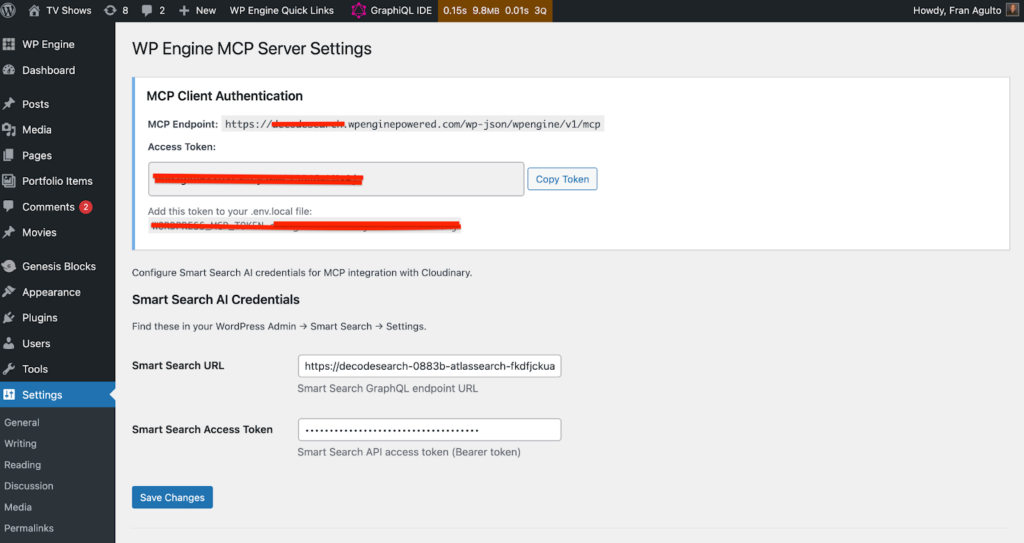
Once configured, the plugin is ready to receive MCP requests from your Next.js chatbot.
Refactoring the Next.js Route Handler
Now lets update the Next.js API route to orchestrate all three MCP servers. The refactored `route.ts` file manages multiple MCP clients, builds tool wrappers with validation, and provides fallback mechanisms.
Environment Variables
Add these to your `.env.local` file:
`.env
# Existing from previous tutorial
AI_TOOLKIT_MCP_URL=https://your-site-atlassearch.a.run.app/mcp
GOOGLE_GENERATIVE_AI_API_KEY=your_gemini_api_key

# New additions
CLOUDINARY_MCP_URL=https://asset-management.mcp.cloudinary.com/sse
CLOUDINARY_CLOUD_NAME=your_cloud_name
CLOUDINARY_API_KEY=your_api_key
CLOUDINARY_API_SECRET=your_api_secret

WORDPRESS_MCP_URL=https://your-site.com/wp-json/wpengine/v1/mcp
WORDPRESS_MCP_TOKEN=your_mcp_token_from_wordpress

Code language: PHP (php)
A .env.local file stores local environment variables for a Next.js app, usually for app settings and secrets you do not want hardcoded into your codebase.
The refactored route handler introduces several architectural improvements. Let’s walk through the main sections.
MCP Client Caching:
```typescript
let mcpClientsCache: {
  smartSearch: any;
  cloudinary: any;
  wordpress: any;
} | null = null;

async function getMCPClients() {
  if (mcpClientsCache) {
    return mcpClientsCache;
  }

  // Initialize clients...
  mcpClientsCache = {
    smartSearch: smartSearchClient,
    cloudinary: cloudinaryClient,
    wordpress: wordpressClient,
  };

  return mcpClientsCache;
}
```
Code language: PHP (php)
This caching strategy avoids recreating MCP connections on every request, significantly improving performance. The first request initializes all three clients, and subsequent requests reuse the cached connections.
WordPress Tool Validation:
```typescript
const createPostParameters = z.object({
  title: z.string().min(1),
  content: z.string().min(1),
  status: z.enum(["publish", "draft", "pending"]).optional(),
  cloudinary_url: z.string().optional(),
  cloudinary_public_id: z.string().optional(),
});

function validateCreatePostArgs(args: z.infer<typeof createPostParameters>) {
  if (args.cloudinary_public_id && !args.cloudinary_url) {
    throw new Error(
      "cloudinary_url is required to embed the image when cloudinary_public_id is provided."
    );
  }
}
```
Code language: PHP (php)
Zod schemas provide runtime validation of AI-generated tool parameters. This validation ensures that when Gemini attempts to create a WordPress post with a Cloudinary image, it must provide the `cloudinary_url` parameter—preventing incomplete or malformed requests from reaching WordPress.
Fallback Mechanism:
```typescript
let wordpressTools = await loadToolsSafely(
  wordpressClient,
  buildStableWordPressTools
);

if (Object.keys(wordpressTools).length === 0) {
  wordpressTools = buildDirectWordPressFallbackTools(
    process.env.WORDPRESS_MCP_URL,
    process.env.WORDPRESS_MCP_TOKEN
  );
}
```
Code language: JavaScript (javascript)
If the MCP client connection fails, the fallback mechanism makes direct HTTP calls to the WordPress MCP endpoint using the same JSON-RPC protocol. This resilience pattern ensures WordPress functionality remains available even if the MCP SDK encounters issues.
System Prompt Engineering:
```typescript
const systemPromptContent = `You are a helpful AI assistant with access to tools for searching data.

CRITICAL INSTRUCTIONS:
1. When users ask about Cloudinary, images, videos, media, or assets:
   - You MUST use Cloudinary tools (search-assets, list-images, list-videos, etc.)
   - NEVER respond without calling a Cloudinary tool first

2. When users ask about TV shows or knowledge retrieval:
   - You MUST use the 'search' tool
   - NEVER respond without calling the search tool first

3. When users ask about WordPress posts, publishing, drafts, site info, or cache:
   - You MUST use WordPress tools (wpengine--create-post, wpengine--list-posts, etc.)
   - NEVER respond without calling a WordPress tool first
   - If creating a post with a Cloudinary image, you MUST include cloudinary_url in wpengine--create-post arguments

NEVER make up data. ALWAYS call the appropriate tool before responding.`;
```
Code language: JavaScript (javascript)
This system guides Gemini on when to use which tools, preventing the AI from hallucinating responses instead of calling the appropriate MCP tools. The explicit instructions ensure the AI orchestrates tools correctly for multi-step workflows.
Here is the entire `route.ts` file here for your reference.
code block
// IMPORTANT! Set the runtime to edge
export const runtime = "edge";

import {
  convertToCoreMessages,
  experimental_createMCPClient,
  Message,
  streamText,
  tool,
} from "ai";
import { createGoogleGenerativeAI } from "@ai-sdk/google";
import { z } from "zod";

import { weatherTool } from "@/app/utils/tools";
import { StreamableHTTPClientTransport } from "@modelcontextprotocol/sdk/client/streamableHttp.js";

/**
 * Initialize the Google Generative AI API
 */
const google = createGoogleGenerativeAI();

// MCP client cache to avoid recreating on every request
let mcpClientsCache: {
  smartSearch: any;
  cloudinary: any;
  wordpress: any;
} | null = null;

const createPostDescription =
  "Create a WordPress post. If including a Cloudinary image, ALWAYS pass cloudinary_url (secure URL) so the image is embedded.";

const createPostParameters = z.object({
  title: z.string().min(1),
  content: z.string().min(1),
  status: z.enum(["publish", "draft", "pending"]).optional(),
  cloudinary_url: z.string().optional(),
  cloudinary_public_id: z.string().optional(),
});
const updatePostParameters = z.object({
  post_id: z.number(),
  title: z.string().optional(),
  content: z.string().optional(),
  status: z.string().optional(),
});
const getPostParameters = z.object({
  post_id: z.number(),
});
const listPostsParameters = z.object({
  limit: z.number().optional(),
  status: z.string().optional(),
});
const passthroughObjectParameters = z.object({}).passthrough();

function validateCreatePostArgs(args: z.infer<typeof createPostParameters>) {
  if (args.cloudinary_public_id && !args.cloudinary_url) {
    throw new Error(
      "cloudinary_url is required to embed the image when cloudinary_public_id is provided."
    );
  }
}

function addHyphenAliases(tools: Record<string, any>, extraAliases: Record<string, string> = {}) {
  const withAliases: Record<string, any> = { ...tools };
  for (const [name, tool] of Object.entries(tools)) {
    const alias = name.replace(/-/g, "_");
    if (!(alias in withAliases)) {
      withAliases[alias] = tool;
    }
  }

  for (const [alias, canonicalName] of Object.entries(extraAliases)) {
    if (canonicalName in withAliases && !(alias in withAliases)) {
      withAliases[alias] = withAliases[canonicalName];
    }
  }

  return withAliases;
}

async function loadToolsSafely(
  client: any,
  builder: (rawTools: Record<string, any>) => Record<string, any>
) {
  if (!client) return {};

  try {
    const rawTools = await client.tools();
    return builder(rawTools);
  } catch {
    return {};
  }
}

function buildStableSmartSearchTools(rawTools: Record<string, any>) {
  const stableTools: Record<string, any> = {};

  if (rawTools.search?.execute) {
    stableTools.search = tool({
      description:
        rawTools.search.description ||
        "Search for relevant information and return ranked results.",
      parameters: z.object({
        query: z.string().min(1),
        filter: z.string().optional(),
        limit: z.number().optional(),
        offset: z.number().optional(),
      }),
      execute: async (args) => rawTools.search.execute(args),
    });
  }

  if (rawTools.fetch?.execute) {
    stableTools.fetch = tool({
      description:
        rawTools.fetch.description ||
        "Fetch a document by ID and return its full content.",
      parameters: z.object({
        id: z.string().min(1),
      }),
      execute: async (args) => rawTools.fetch.execute(args),
    });
  }

  return stableTools;
}

function buildStableCloudinaryTools(rawTools: Record<string, any>) {
  const stableTools: Record<string, any> = {};
  const cloudinaryToolNames = [
    "search-assets",
    "list-images",
    "list-videos",
    "list-files",
    "get-asset-details",
    "list-tags",
    "visual-search-assets",
    "transform-asset",
    "get-tx-reference",
  ];

  for (const name of cloudinaryToolNames) {
    const raw = rawTools[name];
    if (!raw?.execute) continue;

    if (name === "search-assets") {
      stableTools[name] = tool({
        description:
          raw.description ||
          "Search Cloudinary assets. Supports plain query text and advanced request payload.",
        parameters: z.object({
          query: z.string().optional(),
          expression: z.string().optional(),
          max_results: z.number().optional(),
          next_cursor: z.string().optional(),
        }).passthrough(),
        execute: async (args) => {
          const expression = args.expression || args.query || "";
          return raw.execute({
            request: {
              expression,
              ...(args.max_results ? { max_results: args.max_results } : {}),
              ...(args.next_cursor ? { next_cursor: args.next_cursor } : {}),
            },
          });
        },
      });
      continue;
    }

    stableTools[name] = tool({
      description: raw.description || `Cloudinary tool: ${name}`,
      // Force OBJECT schema for Gemini compatibility.
      parameters: passthroughObjectParameters,
      execute: async (args) => raw.execute(args ?? {}),
    });
  }

  return stableTools;
}

function buildStableWordPressTools(rawTools: Record<string, any>) {
  const stableTools: Record<string, any> = {};
  const wordpressToolNames = [
    "wpengine--get-current-site-info",
    "wpengine--purge-cache",
    "wpengine--create-post",
    "wpengine--update-post",
    "wpengine--get-post",
    "wpengine--list-posts",
    "wpengine--index-cloudinary-asset",
    "wpengine--bulk-index-cloudinary-assets",
  ];

  for (const name of wordpressToolNames) {
    const raw = rawTools[name];
    if (!raw?.execute) continue;

    if (name === "wpengine--create-post") {
      stableTools[name] = tool({
        description: raw.description || createPostDescription,
        parameters: createPostParameters,
        execute: async (args) => {
          validateCreatePostArgs(args);
          return raw.execute(args);
        },
      });
      continue;
    }

    if (name === "wpengine--update-post") {
      stableTools[name] = tool({
        description: raw.description || "Update an existing WordPress post.",
        parameters: updatePostParameters,
        execute: async (args) => raw.execute(args),
      });
      continue;
    }

    if (name === "wpengine--get-post") {
      stableTools[name] = tool({
        description: raw.description || "Get details of a WordPress post by ID.",
        parameters: getPostParameters,
        execute: async (args) => raw.execute(args),
      });
      continue;
    }

    if (name === "wpengine--list-posts") {
      stableTools[name] = tool({
        description: raw.description || "List WordPress posts.",
        parameters: listPostsParameters,
        execute: async (args) => raw.execute(args ?? {}),
      });
      continue;
    }

    stableTools[name] = tool({
      description: raw.description || `WordPress tool: ${name}`,
      parameters: passthroughObjectParameters,
      execute: async (args) => raw.execute(args ?? {}),
    });
  }

  return stableTools;
}

function buildDirectWordPressFallbackTools(wordpressMcpUrl?: string, wordpressMcpToken?: string) {
  if (!wordpressMcpUrl || !wordpressMcpToken) {
    return {};
  }

  const callWordPressTool = async (name: string, args: Record<string, any>) => {
    const response = await fetch(wordpressMcpUrl, {
      method: "POST",
      headers: {
        "Content-Type": "application/json",
        "x-mcp-token": wordpressMcpToken,
      },
      body: JSON.stringify({
        jsonrpc: "2.0",
        id: Date.now(),
        method: "tools/call",
        params: {
          name,
          arguments: args ?? {},
        },
      }),
    });

    const rawText = await response.text();
    let payload: any;
    try {
      payload = JSON.parse(rawText);
    } catch {
      throw new Error(`WordPress MCP returned non-JSON response (status ${response.status})`);
    }

    if (!response.ok || payload?.error) {
      throw new Error(
        payload?.error?.message || `WordPress MCP request failed (status ${response.status})`
      );
    }

    return payload?.result ?? payload;
  };

  return {
    "wpengine--create-post": tool({
      description: createPostDescription,
      parameters: createPostParameters,
      execute: async (args) => {
        validateCreatePostArgs(args);
        return callWordPressTool("wpengine--create-post", args);
      },
    }),
    "wpengine--update-post": tool({
      description: "Update an existing WordPress post.",
      parameters: updatePostParameters,
      execute: async (args) => callWordPressTool("wpengine--update-post", args),
    }),
    "wpengine--get-post": tool({
      description: "Get details of a specific WordPress post.",
      parameters: getPostParameters,
      execute: async (args) => callWordPressTool("wpengine--get-post", args),
    }),
    "wpengine--list-posts": tool({
      description: "List WordPress posts.",
      parameters: listPostsParameters,
      execute: async (args) => callWordPressTool("wpengine--list-posts", args ?? {}),
    }),
    "wpengine--get-current-site-info": tool({
      description: "Get information about the current WordPress site.",
      parameters: passthroughObjectParameters,
      execute: async () => callWordPressTool("wpengine--get-current-site-info", {}),
    }),
  };
}

async function getMCPClients() {
  if (mcpClientsCache) {
    return mcpClientsCache;
  }

  // Smart Search MCP Client
  const smartSearchTransport = new StreamableHTTPClientTransport(
    new URL(process.env.AI_TOOLKIT_MCP_URL || "http://localhost:8080/mcp")
  );

  const smartSearchClient = await experimental_createMCPClient({
    transport: smartSearchTransport,
  });

  // Cloudinary MCP Client (Remote)
  const cloudinaryMcpUrl = process.env.CLOUDINARY_MCP_URL || "https://asset-management.mcp.cloudinary.com/sse";

  let cloudinaryClient = null;
  let wordpressClient = null;

  try {
    const cloudinaryTransport = new StreamableHTTPClientTransport(
      new URL(cloudinaryMcpUrl),
      {
        fetch: (url: string | URL, init?: RequestInit) => {
          const headers: Record<string, string> = {
            ...init?.headers as Record<string, string>,
            'Accept': 'application/json, text/event-stream',
            'Content-Type': 'application/json',
          };

          // Add Cloudinary credentials if provided
          if (process.env.CLOUDINARY_CLOUD_NAME) {
            headers['cloudinary-cloud-name'] = process.env.CLOUDINARY_CLOUD_NAME;
          }
          if (process.env.CLOUDINARY_API_KEY) {
            headers['cloudinary-api-key'] = process.env.CLOUDINARY_API_KEY;
          }
          if (process.env.CLOUDINARY_API_SECRET) {
            headers['cloudinary-api-secret'] = process.env.CLOUDINARY_API_SECRET;
          }

          return fetch(url, {
            ...init,
            headers
          });
        }
      } as any
    );

    cloudinaryClient = await experimental_createMCPClient({
      transport: cloudinaryTransport,
    });
  } catch {
    cloudinaryClient = null;
  }

  const wordpressMcpUrl = process.env.WORDPRESS_MCP_URL;
  const wordpressMcpToken = process.env.WORDPRESS_MCP_TOKEN;
  if (wordpressMcpUrl && wordpressMcpToken) {
    try {
      const wordpressTransport = new StreamableHTTPClientTransport(
        new URL(wordpressMcpUrl),
        {
          fetch: (url: string | URL, init?: RequestInit) => {
            const headers: Record<string, string> = {
              ...(init?.headers as Record<string, string>),
              Accept: "application/json, text/event-stream",
              "Content-Type": "application/json",
              "x-mcp-token": wordpressMcpToken,
            };

            return fetch(url, {
              ...init,
              headers,
            });
          },
        } as any
      );

      wordpressClient = await experimental_createMCPClient({
        transport: wordpressTransport,
      });
    } catch {
      wordpressClient = null;
    }
  }

  mcpClientsCache = {
    smartSearch: smartSearchClient,
    cloudinary: cloudinaryClient,
    wordpress: wordpressClient,
  };

  return mcpClientsCache;
}

export async function POST(req: Request) {
  try {
    // Get MCP clients
    const {
      smartSearch: smartSearchClient,
      cloudinary: cloudinaryClient,
      wordpress: wordpressClient,
    } = await getMCPClients();

    // Get tools from Smart Search MCP
    const rawSmartSearchTools = await smartSearchClient.tools();
    const smartSearchTools = buildStableSmartSearchTools(rawSmartSearchTools);

    // Get tools from Cloudinary MCP if connected
    const cloudinaryTools = await loadToolsSafely(
      cloudinaryClient,
      buildStableCloudinaryTools
    );

    // Get tools from WordPress MCP if connected
    let wordpressTools = await loadToolsSafely(
      wordpressClient,
      buildStableWordPressTools
    );
    if (Object.keys(wordpressTools).length === 0) {
      wordpressTools = buildDirectWordPressFallbackTools(
        process.env.WORDPRESS_MCP_URL,
        process.env.WORDPRESS_MCP_TOKEN
      );
    }

    const { messages }: { messages: Array<Message> } = await req.json();
    const coreMessages = convertToCoreMessages(messages);

    const systemPromptContent = `You are a helpful AI assistant with access to tools for searching data.

CRITICAL INSTRUCTIONS:
1. When users ask about Cloudinary, images, videos, media, or assets:
   - You MUST use Cloudinary tools (search-assets, list-images, list-videos, etc.)
   - NEVER respond without calling a Cloudinary tool first
   - Example queries: "show images", "find assets", "list videos", "search for tag"

2. When users ask about TV shows or knowledge retrieval:
   - You MUST use the 'search' tool
   - NEVER respond without calling the search tool first

3. When users ask about WordPress posts, publishing, drafts, site info, or cache:
   - You MUST use WordPress tools (wpengine--create-post, wpengine--list-posts, etc.)
   - NEVER respond without calling a WordPress tool first
   - If creating a post with a Cloudinary image, you MUST include cloudinary_url in wpengine--create-post arguments

4. When users ask about weather:
   - You MUST use the weatherTool

NEVER make up data. ALWAYS call the appropriate tool before responding.`;

    const cloudinaryToolsWithAliases = addHyphenAliases(cloudinaryTools);
    const wordpressToolsWithAliases = addHyphenAliases(wordpressTools, {
      post: "wpengine--create-post",
    });

    const allTools = {
      ...cloudinaryToolsWithAliases,
      ...wordpressToolsWithAliases,
      ...smartSearchTools,
      weatherTool,
    };
    const response = streamText({
      model: google("models/gemini-2.0-flash", {
        useSearchGrounding: false,
      }),
      system: systemPromptContent,
      messages: coreMessages,
      tools: allTools,
      maxSteps: 5,
    });

    // Convert the response into a friendly text-stream
    return response.toDataStreamResponse({
      getErrorMessage: (error) => {
        const message =
          error instanceof Error ? error.message : "Unknown streaming error";
        console.error("[streamText error]", error);
        return `Stream error: ${message}`;
      },
    });
  } catch (e) {
    console.error('[API Error]', e);
    throw e;
  }
}
Code language: JavaScript (javascript)
Testing Multi-MCP Setup
Let’s test the chatbot locally. Run `npm run dev` and navigate to http://localhost:3000.
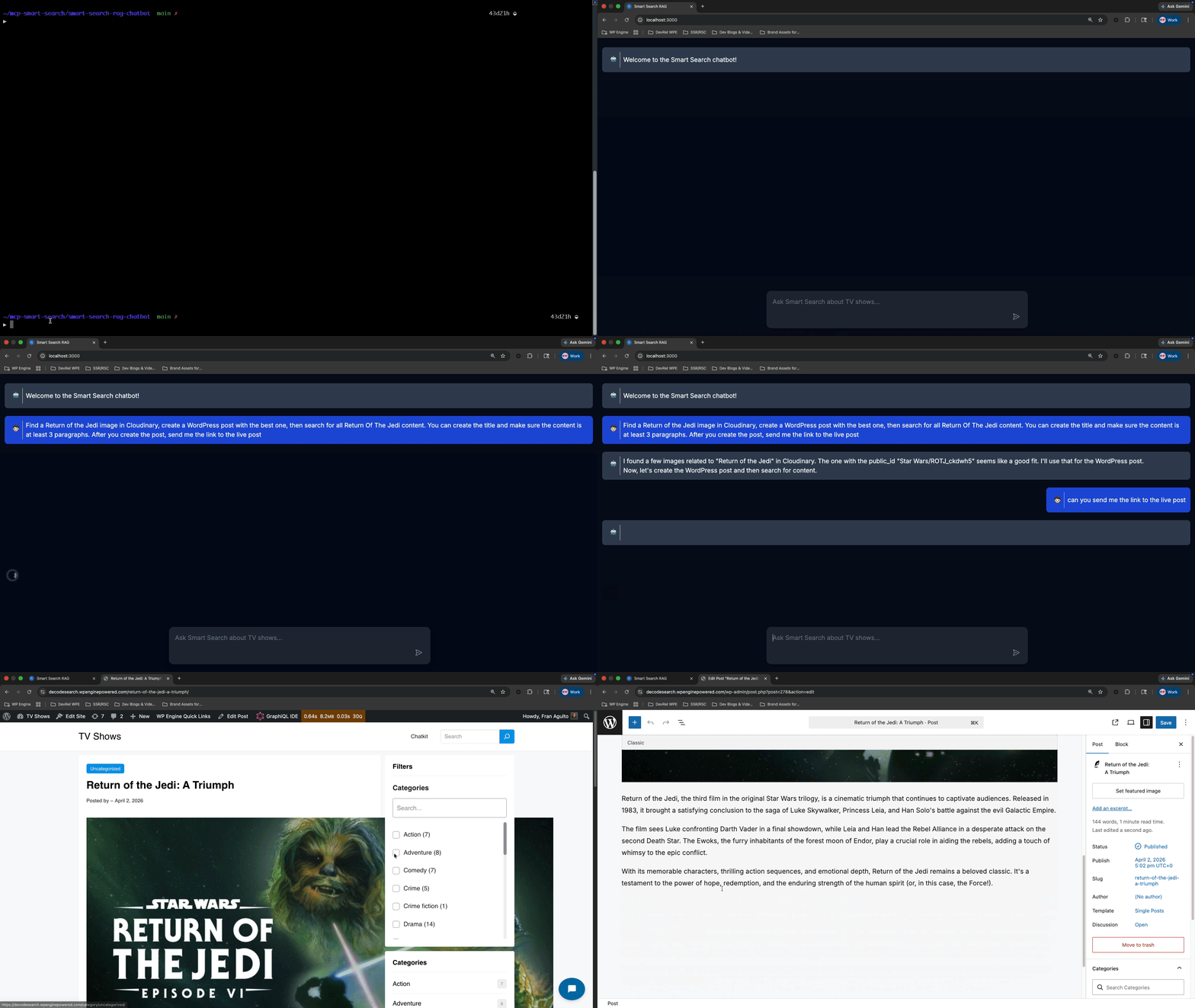
I will use this prompt: “Find a Return of the Jedi image in Cloudinary, create a WordPress post with the best one, then search for all Return Of The Jedi content. You can create the title and make sure the content is at least 3 paragraphs. After you create the post, send me the link to the live post”
Expected behavior:
1. `search-assets` (Cloudinary MCP) → finds Return of the Jedi images
2. `wpengine--index-cloudinary-asset` (WordPress MCP) → indexes chosen image to Smart Search
3. `wpengine--create-post` (WordPress MCP) → creates post with embedded image
4. WordPress automatically indexes the new post to Smart Search
5. `search` (Smart Search MCP) with query “Return of the Jedi”
6. Returns BOTH the newly created post AND the indexed Cloudinary asset
This is what it should look like:
Conclusion
We’ve extended the Smart Search RAG chatbot with WordPress and Cloudinary MCP integration, creating a system where natural language prompts can use complex workflows across multiple services. The WordPress MCP server plugin exposes post management and Smart Search indexing tools, while the refactored Next.js route coordinates three MCP servers in concert.
Smart Search AI serves as the unified search layer, making both Cloudinary assets and WordPress posts discoverable through conversational queries. This architecture transforms your chatbot from a simple Q&A interface into an intelligent content discovery and creation system.
As always, we’re stoked to hear your feedback and learn about the projects you’re building with multi-MCP server orchestration! Share your work in the Headless WordPress Discord!
[1] WP Engine is a proud member and supporter of the community of WordPress® users. The WordPress® trademark is the intellectual property of the WordPress Foundation. Uses of the WordPress® trademarks in this website are for identification purposes only and do not imply an endorsement by WordPress Foundation. WP Engine is not endorsed or owned by, or affiliated with, the WordPress Foundation.
