Get Started


Key Takeaways
Website cloning is a valuable tool for site development and management. Cloning allows for creating staging sites, migrating to new servers, sending copies to clients, and serving as manual backups.
Cloning a WordPress site can be done locally or on live servers with different methods. Local installations can be cloned using tools like Local, while live sites on platforms like Flywheel offer site cloning features.
WP Engine’s Blueprints feature streamlines site creation by offering templates based on existing sites. This can save time when setting up new sites with similar architectures.
Cloning sites with confidence on WordPress is essential for development, testing, and migration purposes. Creating clones ensures that changes can be made without affecting the live site, providing a safe environment for experimentation and development.
There may come a time when you need an exact copy of your website. For example, you may need to move it from one server to another, or want to experiment with changes without risk to your live site.
Regardless of your reason, the way to achieve this is by creating a clone of your site. This is a near-identical version of your site that can be used completely independently of the original. This lets you work on your site that isn’t your live version, and it’s surprisingly simple to accomplish.
In this article, we’ll discuss the concept of cloning a WordPress site, and why you might want to do it in the first place. We’ll also show you how you can do it yourself, whether it’s a local or live site. Let’s get started! You can jump right to each section here:

Why you might want to clone your WordPress website
Website cloning is simply the process of creating an exact copy of a site. While the process will vary slightly depending on your workflow and which tool you use, it will usually mean copying every aspect of your original site. This generally includes the design and all content, as well as the database.
There are several reasons why you might want to create a clone of your site. For example, you can use a cloned site to:
1. Create a staging site.
This lets you develop, test, and troubleshoot your site without risking any of your changes affecting the original.
2. Migrate your site to another server.
For example, you might be switching web hosts and don’t want to lose any of your work during the process.
3. Send a copy of the site to a client.
This is ideal for when you’ve developed a client site and need to provide them with a copy, or you simply want to hand over the site while keeping a version yourself.
4. Save as a manual backup.
Creating a backup of your site is a great security measure, and cloning can be used as a manual way of saving a version of your site.
5. Create a new site based on the original.
Maybe you want to create a very similar site to your existing one, and you don’t want to have to start from scratch. Instead, you could use the clone as a sort-of template.
To touch on the last point a little more, we should also mention that WP Engine actually offers a feature called Blueprints. This lets you create a template of an existing site, much in the same way as you would when cloning one. In our opinion, if you’re often creating sites from the same basic architecture (for example, by installing the same plugins and themes across a number of installations) this will be a timesaver!
If you do want to clone an existing WordPress site, your approach will differ depending on where the site is hosted. For example, local installs created using a tool such as Local will be different from a live site hosted elsewhere.

How to clone your WordPress website (in 3 ways)
We’re now going to cover two methods you can use to clone a WordPress site. The one you need depends on the type of site and how you created it.
As such, we’ll start by showing you how to clone a local site created using the Local tool, which enables you to install WordPress on your computer and work on it away from your server. We’ll also cover the same process for a live site, which lets you either use the clone yourself, or send it directly to a client. Either way, let’s get started!
1. Clone a local WordPress installation
Cloning a local site couldn’t be easier. First, you’ll obviously need to have Local installed on your computer. This tool lets you set up a local staging environment anywhere in just a few minutes, and effortlessly deploy your local site to a live server.
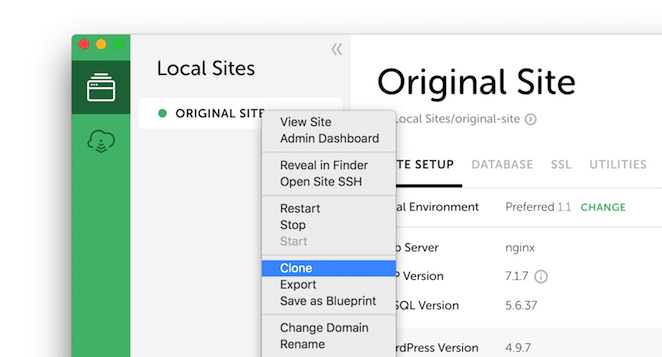
You’ll also need to have created at least one site already within Local. This will obviously be the one you want to clone. Open up the application, and you’ll see your existing site in the left-hand menu:
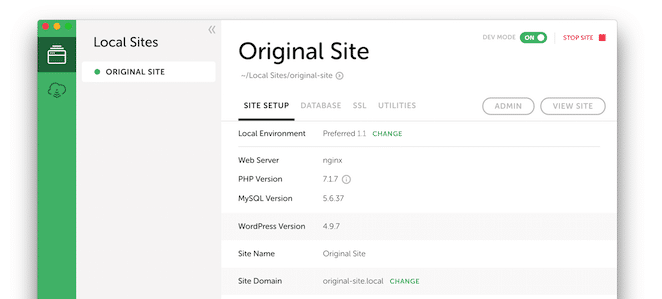
From here, simply right-click your site and select the Clone option:
A pop-up will appear, giving you the opportunity to name your cloned site:
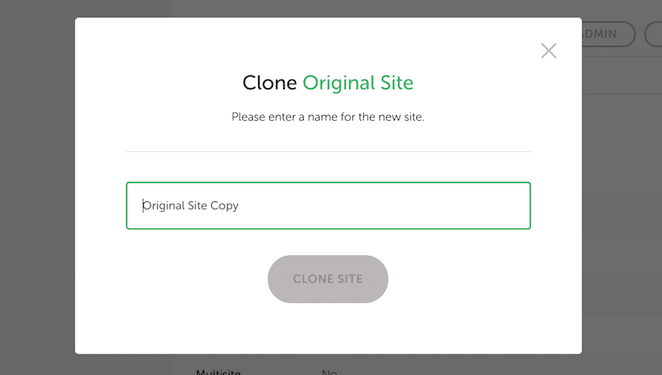
Next, click Clone Site. Local will now create the new site, which shouldn’t take longer than a few seconds. When it’s done, you’ll see your new site in the list:
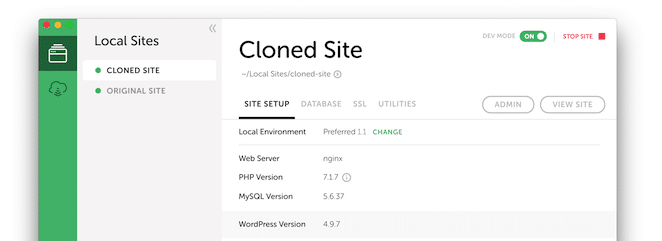
You can now work with your clone, just like any other local site!
2. Clone a live WordPress site on WP Engine’s Flywheel platform
If you want to create a replica of an existing live site hosted on our Flywheel platform, you can do so easily using a feature aptly named Site Cloning. You can then choose to keep the site for yourself or use it to create a temporary demo site for a client.
To start cloning a site on the Flywheel platform, log into your Flywheel dashboard:
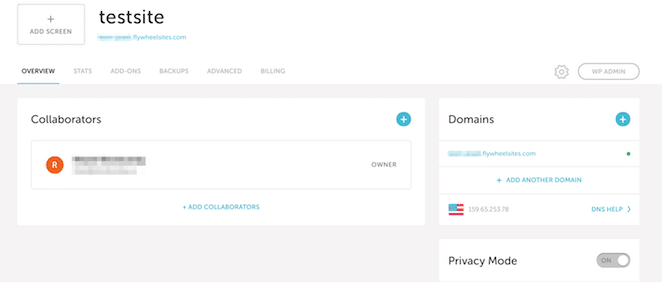
Here, you need to hover over the cog icon in the top-right corner of the page, which will expand to display several options:
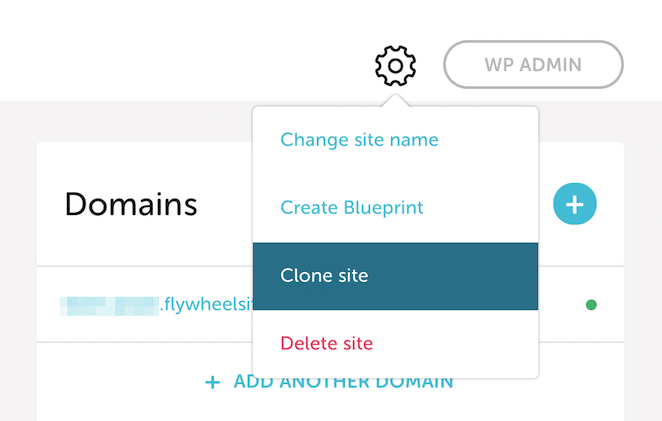
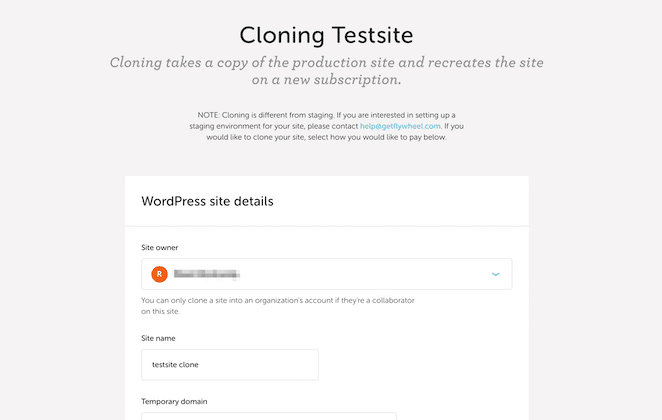
This will open the Cloning page, where you’ll be asked to provide details about your clone:
If you scroll down the page, you’ll see payment options. If you want to keep the site for yourself, you can either pay for it right away, or alternatively add it to an existing bulk plan:
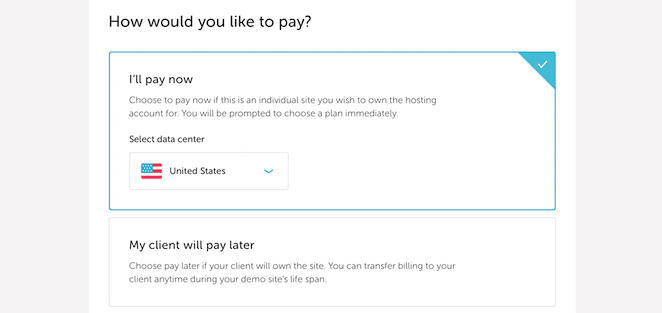
You can also opt to use the clone as a temporary demo site. This lets you show the site to a client, which is great if you’re still awaiting their approval or payment.
Once you’ve chosen a suitable option, you can proceed to the next step. If you opted to pay now, you’ll be asked to do so, after which your site will be cloned. When that’s done, you’ll be able to access your site from your Flywheel dashboard!
3. Clone a live WordPress site on WP Engine’s managed platform
For WP Engine customers on our managed hosting platform, cloning a live site is super simple! Check out this support article or watch the video below for a quick walkthrough of the process.
Clone sites with confidence on WordPress
If you need an identical copy of your site, whether it’s because of development, testing, or migration, creating a clone is your best option. Regardless of whether your site is a local WordPress install or a live site on a web server, cloning it shouldn’t be too difficult.
In this article, we’ve discussed the process of creating a clone of your WordPress website. You can do this in one of the following ways:
- Clone a local WordPress installation using Local
- Clone a live WordPress site hosted with Flywheel on WP Engine
- Clone a live WordPress site on WP Engine’s managed platform