Get Started


Key Takeaways
Including a Table of Contents (TOC) enhances UX and SEO. A TOC helps users find relevant information quickly and boosts keyword density for SEO, increasing chances of a featured snippet in Google.
Plugins simplify TOC creation in WordPress. Fixed TOC plugin automates TOC generation based on post settings, improving user navigation.
Shortcodes offer versatile TOC placement. Shortcodes allow custom TOC display in posts, pages, and widgets, enhancing user experience.
Customizing TOC styles improves visitor engagement. Floating and sidebar TOC styles enhance UX by providing easy navigation options.
The visitor’s User Experience (UX) should be very important to you as a website owner or developer. However, it can be difficult to know whether you’ve covered all of your bases, and what else you should incorporate into your site.
One element that’s often overlooked is a Table of Contents (TOC) for your long-form content. The addition of a TOC to each of your posts not only enables readers to find the exact sections they’re interested in, but also makes your content appear more organized.
In this post, we’ll introduce the various options for creating a WordPress table of contents (including plugins, shortcodes, and HTML). We’ll then outline two popular styles and how you can achieve them. Let’s get started!
Why should I include a table of contents on my WordPress site?
While a Table of Contents may seem superfluous for a blog post, it can actually go a long way towards improving your site’s UX. Most readers come to your content seeking answers to specific questions. A TOC enables them to easily jump to the information that’s most relevant to them, instead of requiring them to scroll and skim to find what they need.
Additionally, a TOC can improve your posts’ Search Engine Optimization (SEO). These handy links are an easy place to incorporate your keyword(s), which are a very important ranking factor.
On top of increasing your keyword density, having a TOC in your post can increase your chances of getting a featured snippet in Google. This is the short excerpt that appears above the main list of results for some searches:
Getting a featured snippet is not an exact science. However, lists (such as TOCs) are often displayed, because they can communicate answers to searchers’ questions in a clear and concise way.
Adding a table of contents using plugins
Plugins are a perfect way to extend functionality within WordPress. There are several solutions available that provide an easy way to add a WordPress table of contents to your site’s posts.
Our favorite WordPress table of contents plugin is Fixed TOC. You can also use other plugins in conjunction with it, such as Q2W3 Fixed Widget, to further optimize the TOCs on your website.
Installing a plugin is simple. All you have to do is:
- Navigate to Plugins > Add New in the WordPress dashboard.
- Upload the plugin’s .zip file (free or premium), or install it from the Plugin Directory (free plugins only).
Once it’s installed and activated, you’ll have full access to the range of functionality offered by that particular plugin. From there, the process will vary based on the tool you’ve chosen.
For example, here’s how to create a TOC once you’ve installed Fixed TOC:
- Navigate to Settings > Fixed TOC.
- In the General tab, select which post types you want to apply a TOC to, which heading levels to include, and where you want your TOC to be located.
- In the Color tab, choose the color scheme for your TOC.
The plugin will automatically add a TOC to each of the relevant posts, and use your existing headings to create jump links.
Adding a table of contents using shortcodes
Alongside WordPress table of contents plugins, you can use shortcodes to further control how your WordPress TOC is displayed. These are small code snippets that you can paste into the editor, letting you display custom content practically anywhere on the page.
Shortcodes make it easy to add a table of contents to your posts, pages, sidebar, and widgets. Here’s how:
- Download a TOC plugin that uses shortcodes, or use a plugin without shortcodes in conjunction with a solution such as Shortcoder.
- Find the shortcodes offered by the plugin, or create them using Shortcoder.
- Copy the shortcodes, and paste them wherever you’d like within WordPress (in a blog post, for example). Shortcoder offers easy table of contents shortcodes, making adding them to your site a breeze.
The beauty of shortcodes is how versatile their placement can be. You can add them to the top, middle, or bottom of your pages and posts, or even in a sidebar widget.
How to create a table of contents in WordPress without a plugin
While plugins are the simplest way to create a TOC within WordPress, you can also add one manually. Here are two methods for doing this.
Creating a table of contents with HTML
While HTML can be intimidating, creating a TOC with code is actually a great option for anyone who needs a simple solution for their website. To do this, you’ll insert a table within WordPress, and include bookmark links to specific pages.
This is by far the simplest manual option—with no frills or bulk. Of course, you can go all out if you’d like, by incorporating multiple colors, various font styles and headings, and more. You’re bound only by your own creativity and knowledge of HTML.
Using archives and links page templates for TOC
TOCs don’t always need to be located on individual posts and pages. Instead, you can create a ‘master’ TOC using WordPress templates. These are preset page designs, which enable you to create dedicated pages for site elements such as archives and links.
Those pages can then be used on your website as “master” TOCs, directing users to the exact content they’re looking for. For example, take Leaving Work Behind’s Archives page:
The templates for these pages are usually named archives.php and links.php (although you can rename them). While some themes include these pages, not all do. However, you can create your own with very little coding knowledge required.
Table of contents styles
Your table of contents’ style plays a huge role in how well it enhances visitors’ UX. With that in mind, let’s look at the two most popular styles for WordPress TOCs.
Floating table of contents
A floating TOC is a widget that remains fixed on the side of the page. Implementing it takes two steps. First, you’ll need to set up a WordPress TOC and add it to your WordPress site as a widget (using one of the previous methods).
Once that’s done, you can use the Q2W3 Fixed Widget plugin (or a similar solution) to keep the TOC widget ‘stuck’ to the side of the page. With this plugin installed, go back to the Widgets area of your site and open the TOC widget. Then enable the Fixed widget checkbox:
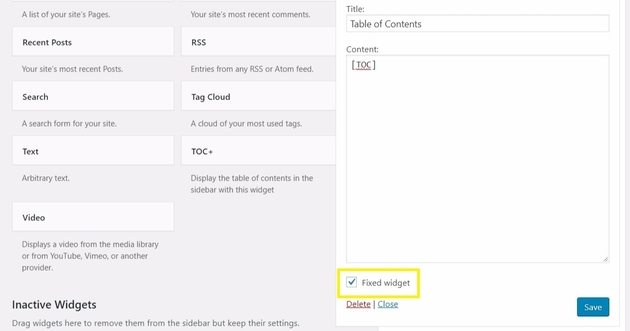
Once this option is enabled, the table of contents will no longer disappear from page view as the user scrolls down. Instead, it will scroll along with the page’s contents, so that it’s always present. This is also the default style implemented by the Fixed TOC plugin we mentioned earlier.
Table of contents sidebar
Similar to the floating TOC, in this method a sidebar is displayed to the right or left of your web page. However, instead of scrolling along with the user, the TOC sidebar stays in a fixed position (such as the one on WPBeginner):

The TOC sidebar is very easy to create. Simply add a TOC widget if possible, or include a shortcode in an existing sidebar widget. Your WordPress TOC will then appear as a fixed aspect of the sidebar.
Customize your site with WP Engine
Delivering the highest quality UX to your website’s users will keep them coming back for more content. In addition to teaching you various methods for incorporating a WordPress TOC into your posts and pages, our resources have many valuable tips and tricks for enhancing your site.
We also offer industry-leading hosting for WordPress sites, stellar 24/7 support, and a variety of plans to ensure that you’re able to find one that fits your needs. Check them out today!