
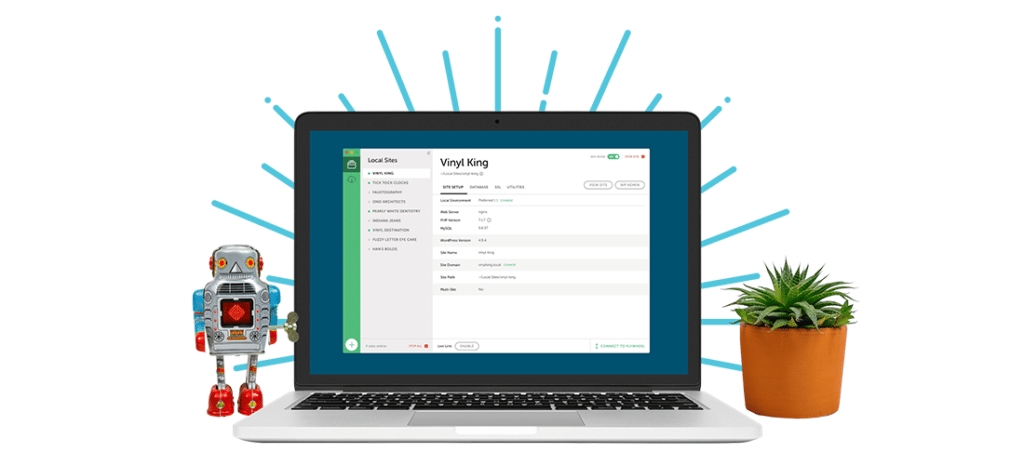
Getting Started With Local as Your WordPress Development Environment
While your websites are (naturally) hosted online, there are plenty of situations in which you may want to create a site that isn’t live on the web. For example, you might need to set up a staging environment to develop your site before it goes live, experiment safely with design changes, or perform troubleshooting.
When it comes to creating an offline site, Local is one of the most intuitive and powerful tools for the job. This solution makes it easy to install WordPressⓇ on your computer, clone an existing site or build a new one, and even push your local version straight to a live environment.
Key takeaways:
- In WordPress development, a “local” (lowercase l) site refers to a publicly inaccessible site stored on a developer’s computer used to perform troubleshooting, experiment with new tools, or create changes to a site without disrupting the public-facing version.
- Local (capital L) is a free app that simplifies the process of developing a local site and exporting it to a live environment.
- Developers can get started using the Local app in just a few minutes with a simple, three-step setup process.
- WP Engine and Flywheel customers also benefit from the power of Local Connect, which further streamlines the process of pushing a site from Local to live.
An introduction to local WordPress development
If you want people to visit your website, it will have to be hosted online. In fact, one of the first things you’ll do when setting up a new website is sign up for a hosting plan.
However, there are times when you’ll want to work on a website without letting the changes affect your live, customer-facing site. A “local site,” also known as a “development site,” is a website stored on your own computer.
A local site cannot be accessed unless a user is logged in to the device it’s stored on or has specific credentials to log in through a secure URL. You can create a permanently private local site, or make a copy of a live site so you have a version you can play around with.
Local sites have many uses. Some of the most common include:
- Learning and experimenting with new tools or platforms.
- Building a new site before it’s ready to be published online.
- Testing large-scale changes or redesigning elements for a live site without interrupting service for current users.
- Troubleshooting issues.
- Enabling private client feedback and collaboration when building a site for someone else.
Once you’re happy with everything you’ve done to your local site, you can easily turn it into a live environment with your chosen hosting provider.
Of course, to set up a local site, you’ll need the right tool. There are lots of options available, including third-party solutions and applications offered by different hosting providers.
Local: A development tool for WordPress sites
If you’re looking to create a local WordPress website, you can’t go wrong with Local.
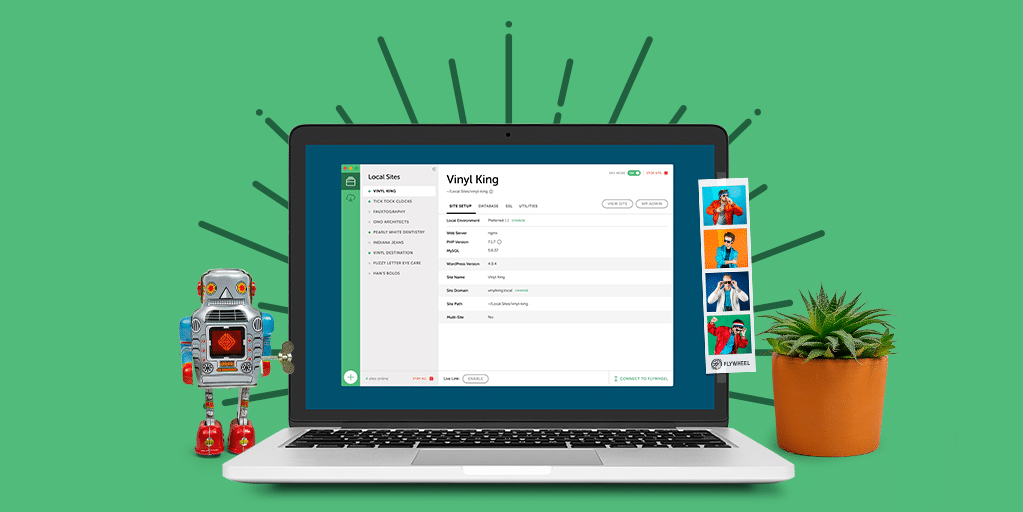
This full-featured tool contains everything you’ll need to set up and use local sites. It’s simple enough for beginners to use and offers plenty of advanced features if you want to customize how your local environment works.
Some of Local’s key features include:
- One-click installations for WordPress, letting you set up your local sites fast
- Local Secure Sockets Layer (SSL) support to keep those sites safe
- Easy access to your local sites’ root files via Secure Shell (SSH) access
- Shareable demo URLs, making it possible to show your site to select people
- Customizable environments for developers, helping you configure the way your local site runs
- The option to clone sites, export a live site to a local version, and push a local site to live hosting on WP Engine
- An Add-ons Library, allowing you to customize your local development environment with the features you need
Best of all, Local is free to use for Mac, Windows, and Linux. This means you can try it out without any risks or obligations involved. Let’s see how it works in action!
Get started with local WordPress development in 3 steps
Setting up Local and using it to manage your local sites is fairly straightforward. In the next few sections, we’ll walk through how to get started.
Step 1: Install Local
To download Local, visit the website and hit the Download For Free button. Next, choose your platform and enter some basic information (only the email field is required, so we can keep you in the loop about new features and functionality).
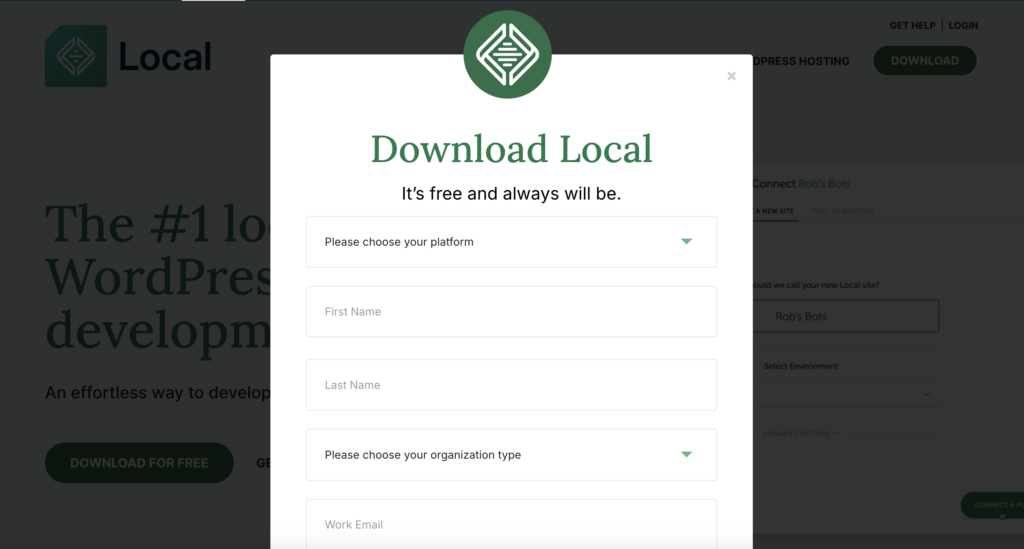
Your download should start right away. Give it a few moments, and then run the installer file. You’ll then be taken to a start-up screen, where you simply need to select the Let’s Go! button.
Clicking the button will start the automatic installation of a few programs that are required for Local to work properly. The installation may take a few minutes to complete. If you receive any prompts during the process, make sure to hit Yes to permit the installer to do its job.
After, you’ll be taken straight to your new Local dashboard.

There are several options to choose from. You can create a new site, which we’ll talk about next. You can also select the cloud icon to connect to managed hosting services, enabling you to make copies of existing sites and push local sites live.
In the top-left corner, there’s an Options menu to let you configure various settings and preferences if you wish. Now you’re ready to create your first local site!
Step 2: Create your local WordPress site
Let’s create a brand-new local WordPress website. To do so, select Create a New Site in your Local dashboard.
Creating a new site takes you to a simple setup wizard, where the first step is to name your site. Make this something descriptive, especially if you plan to create multiple local sites. You can always change the name of your site later.
In addition, you can expand the Advanced Options tab to configure a few optional settings if you’d like.
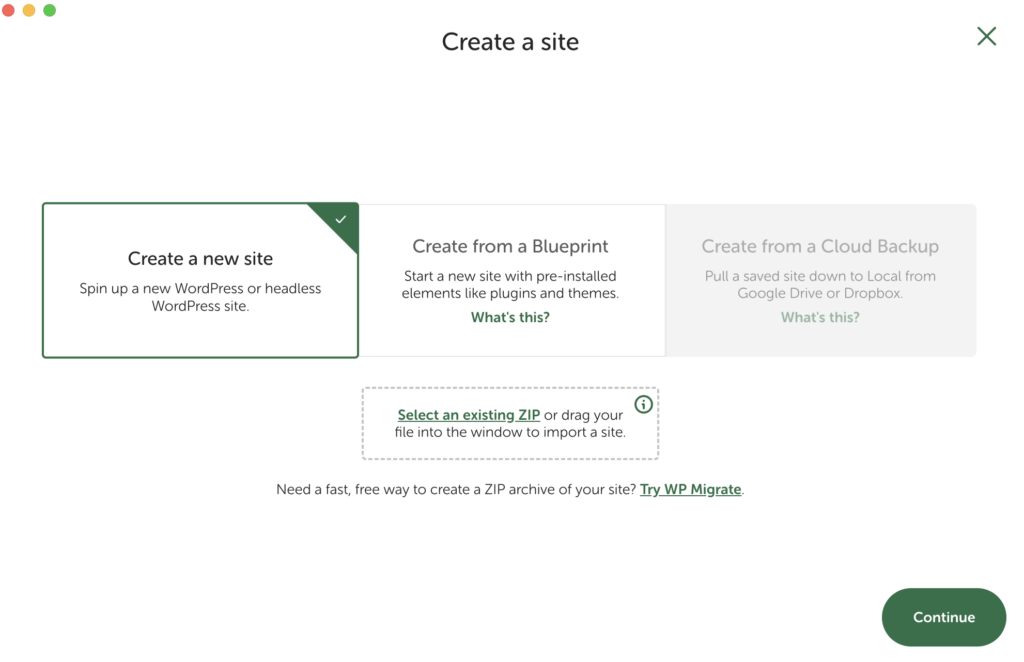
Here you can set a domain and path for your local site. You can choose any domain name and suffix that you’d like, and Local will modify your hosts file to make it work. In our case, we went with my-first-local-site.local.
Local will also automatically create a directory to store your site’s files, but you can also set it to any folder you like.
Once you’ve entered a name for your site, you can continue to the next screen.

Here you can set a domain and path for your local site, You can choose any domain name and suffix that you’d like, and Local will modify your hosts file to make it work. In our case, we went with my-first-local-site.local.
Local will also automatically create a directory to store your site’s files, but you can also set it to any folder you like.
Once you’ve entered a name for your site, you can continue to the next screen:

Here, you have two options. You can choose Preferred to set up your local site using a recommended set of tools, or select Custom to configure your environment.
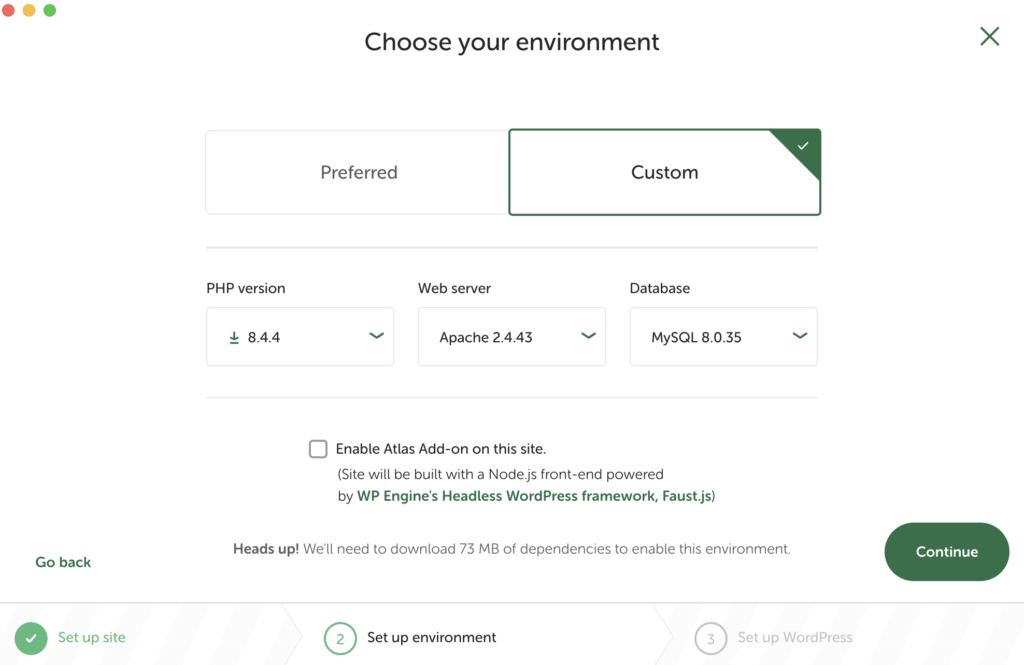
The Preferred option works well for most beginner users, while Custom comes in handy for developers with more specific requirements. Either way, continue to the last step once you’re done here.
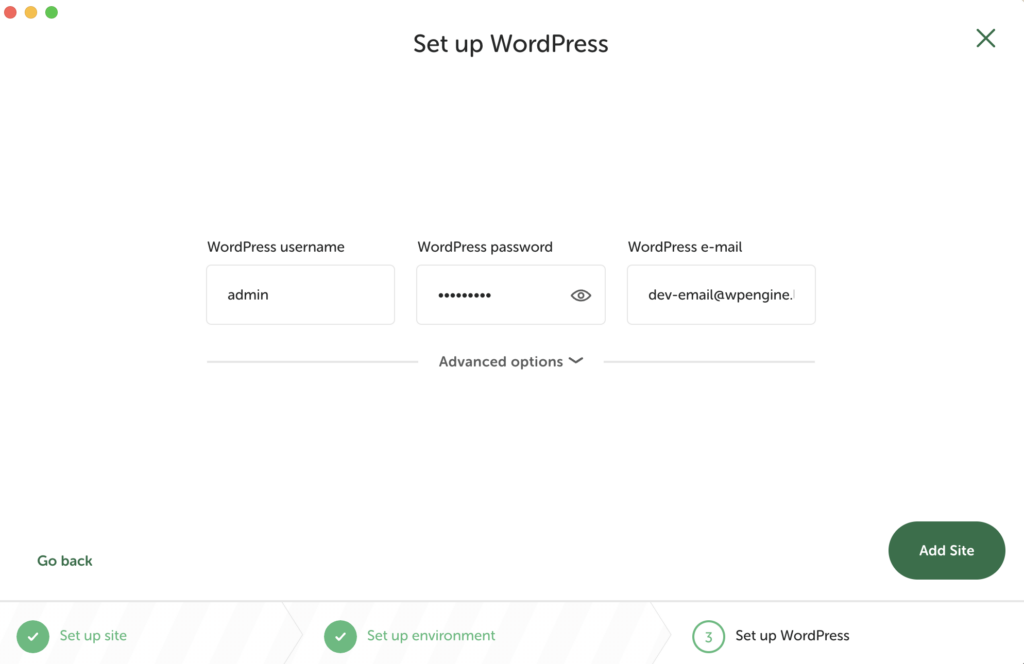
On this screen, you’ll create a WordPress username, a secure password, and enter an admin email address. Under Advanced Options, you can also specify if you’d like this installation to be a multisite setup. Then, hit the Add Site button.
After a few moments, you’ll see your new site listed in the dashboard, along with all of its information.
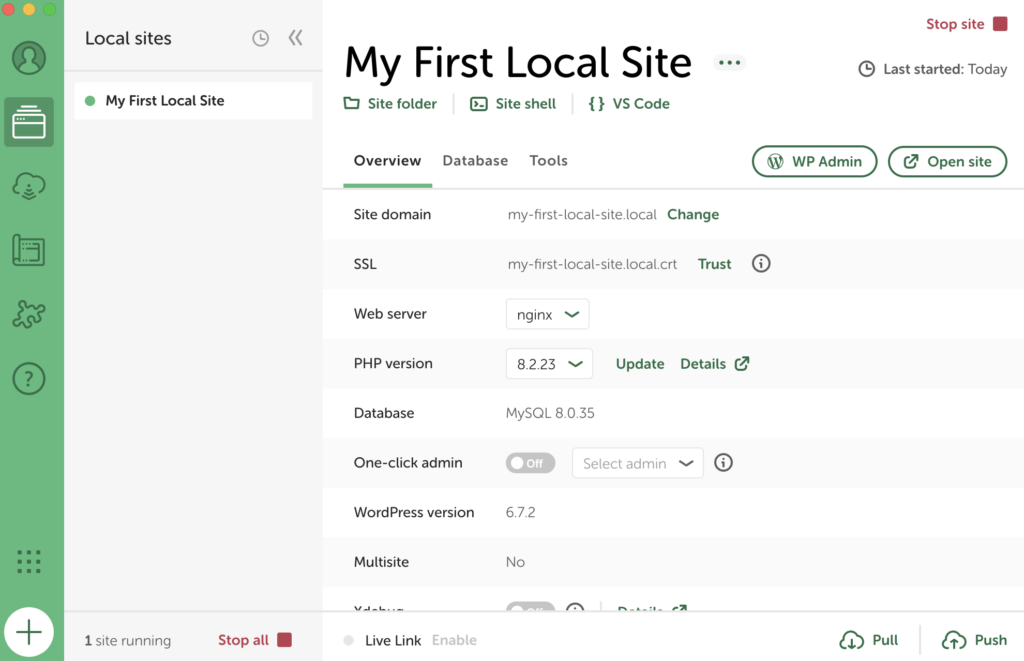
You can now select the Admin button to log into your site and get to work! In addition, you can always come back to this dashboard if you want to make changes to your local site’s setup or domain.
As a note: what you’re working with here is a fully featured WordPress site, set up in record time! This means that you can install any plugins you want, add custom themes, break it, fix it, and break it again. You’ve effectively created a coding playground, with no risk to a live site!
Step 3: Export your site & take it live
Technically, the above two steps are all you need to set up and use a local WordPress website. However, if you’re building a site that you want to take live, you’ll also need to know how that process works.
You can always export your local site and import it to any host of your choice. The steps to import and take a site live vary from host to host, but you’ll likely need to install a migration plugin, export, import, and zip up some files, verify that your migration is working, etc.
We’d highly recommend it if you’re looking for a quick-click workflow. Using Local Connect, you can easily move a site from a Local to a live environment on WP Engine. This feature dramatically streamlines the offline editing and go-live process, and it’s totally free to use.
You can create or log into an existing Flywheel or WP Engine account directly through the Local dashboard. You’ll just need to enter your username and password to make the connection, after which all of your local and live sites will be listed in your Local dashboard!
From there, it’s a matter of a few clicks to push your local website live. Once your account is connected, you’ll have other options here as well. For example, you can make a copy of a live site, turn it into a local site, make changes, and copy your changes back over to the live version.
With that, you know everything you’ll need to create and manage development sites through Local. How you use them is up to you!
Try Local for free
The ability to quickly create a local WordPress site offers numerous benefits. It lets you develop a new website in peace and makes it easy to test, troubleshoot, and experiment without affecting your live site. Local enables you to do all of this easily while offering plenty of advanced tools to enhance your local development capabilities.
To get started with Local, just follow the steps we outlined above!
- Install Local.
- Create a local WordPress site.
- Export your site to WP Engine when it’s ready to go.
Do you have questions about what you can do with Local? You can find Local Help Docs here, or speak with a WP Engine representative to find out more!
