Get Started


Learn how Smart Search AI MCP can surface PDF passages and visual assets together in a headless WordPress chatbot.
In our previous deep-dives into RAG (Retrieval-Augmented Generation), we solved the problem of fragmented data by connecting WordPress, Cloudinary, and Smart Search via MCP.
Now, let’s discuss the issue of modality.
Most RAG systems are great at reading text – but what about understanding context? If a user asks a question that is best answered by a diagram in a PDF or a specific product shot, a standard text-based index often fails to return the visual asset. You end up with a chatbot that can tell you about a document but can’t actually show it to you.
The Multimodal feature in Smart Search AI helps solve this. It allows you to index PDFs and images into a single semantic space. By the end of this guide, we will have refactored our chatbot to interleave PDF passages and visual assets in a single response turn.
The Multimodal Semantic Bridge
The core concept here is the Unified Index. Instead of having one vector space for “descriptions” and another for “text,” Smart Search uses AI to “describe” images at the moment of ingestion.
When you index an image, Smart Search runs it through a vision model to generate a searchable body, caption, and alt-text. This creates a semantic bridge: a user query for “safety diagrams,” for example, can now hit a PDF manual and a JPEG infographic simultaneously because they share the same conceptual space.
Prerequisites
If you followed the previous tutorial, your setup focused on syncing WordPress posts and Cloudinary Image data from its MCP.
This update moves the logic into a mixed-media index. To get the most out of this guide, you should be familiar with the core Smart Search RAG setup we built previously. We will be starting from that point. If you are not familiar, please reference it here.
What’s New: From Text-Only to Multimodal
| Feature | Previous RAG Setup | Multimodal Setup |
| Asset Support | WordPress Posts / Text | PDFs + Images (PNG, JPG) |
| Processing | Text Extraction | Vision Analysis + PDF Text Extraction |
| Search Result | Text Snippets | Mixed Array (Text + Image URLs) |
| Index Strategy | Separate stores per modality | Single multimodal index |
Beta note: Smart Search’s multimodal extraction is currently in beta. It works best with short PDFs (roughly under 20 pages) and standard image formats. Large books or technical manuals may fail extraction today.
Setting Up the Environment
Update your .env.local to include the specific GraphQL credentials for the ingestion script. Note that SMART_SEARCH_ACCESS_TOKEN is your ingestion secret, while AI_TOOLKIT_MCP_TOKEN is used by the chatbot to query the tools.
Ingestion Credentials (GraphQL)
SMART_SEARCH_GRAPHQL_URL=https://api.wpengine.com/v1/smart-search/your-index/graphql
SMART_SEARCH_ACCESS_TOKEN=your_ingestion_token
MCP Credentials (Chatbot)
AI_TOOLKIT_MCP_URL=https://your-mcp-endpoint.a.run.app/mcp
AI_TOOLKIT_MCP_TOKEN=your_mcp_token

# Models
GOOGLE_GENERATIVE_AI_API_KEY=your_gemini_key
1. The Ingestion Pipeline
Instead of manual uploads, we use a manifest-driven script. It calls Smart Search’s pdf.extract and image.analyze GraphQL queries – the first pulls text and page metadata from PDFs, the second runs a vision model to generate a description, caption, and alt-text for each image.
If you are following along, the file lives at scripts/ingest/ingest.ts
Normalizing the Data
What makes the search multimodal isn’t any single field — it’s that both asset types are indexed into the same Smart Search index under a shared schema, distinguished only by an asset_type discriminator. We also normalize the primary searchable text into a shared body field (PDF content for documents, vision-generated description for images), so a single query naturally retrieves either modality.
  // Simplified from ingest.ts
  if (asset.type === "pdf") {
    const result = await extractPdf(asset.url);
    return {
      id: asset.id,
      data: { asset_type: "pdf", body: result.content, ... }
    };
  } else {
    const result = await analyzeImage(asset.url);
    return {
      id: asset.id,
      data: { asset_type: "image", body: result.description, ... }
    };
  }
Verifying via Terminal
Run the script and watch the extraction logs. This is your first confirmation that the vision models are correctly seeing your assets:
wpengine-stoke smart-search-rag-chatbot % npm run ingest

  [email protected] ingest
  tsx --env-file=.env.local scripts/ingest/ingest.ts

  Loaded manifest: 5 assets

  Step 1/2: Extracting content
    → extracting PDF: Eternal Spring — Press Kit
      extracted 15 page(s), 19147 chars (12.1s)
    → analyzing image: Eternal Spring — Lead Still
      description: An overhead shot captures a person, seen from the back, engrossed in drawing at ... (5.2s)
    → analyzing image: Eternal Spring — Still #7
      description: The image is an animated still depicting a person with East Asian features, wear... (5.1s)
    → analyzing image: Eternal Spring — Awards Poster
      description: An illustration depicts a child holding a vintage twin-lens reflex camera in a s... (4.5s)
    → analyzing image: Eternal Spring — Poster
      description: The image is an illustration depicting a chaotic street scene in a dense urban e... (7.8s)

  Step 2/2: Indexing 5 document(s) via bulkIndex
    bulkIndex: code=200 success=true (0.4s)
      indexed → presskit:eternal-spring
      indexed → image:eternal-spring-lead-still
      indexed → image:eternal-spring-still-7
      indexed → image:eternal-spring-awards-poster
      indexed → image:eternal-spring-poster

  Done. 5/5 assets indexed.
Orchestrating the Search
With our index populated, we update the Next.js route handler. The AI needs to know it’s no longer just a “reader” — it’s a “viewer.”
In the project, the file is at src/api/chat/route.ts
Training the LLM
The Smart Search index contains BOTH text documents (PDFs) AND image documents (with AI-generated descriptions). Each document has fields like title, asset_type (“pdf” or “image”), source_url, body, and (for images) caption and alt_text.
For any content question:
1. Call 'search' with the user's query. Use limit: 5 for normal text questions, but limit: 10 (or higher) when the query mentions a visual asset (poster, image, photo, picture, still, screenshot, diagram, infographic, illustration). Text-heavy results will otherwise crowd image results out of the top-K.
2. If the top result(s) look relevant, IMMEDIATELY call 'fetch' on them to get full content. Do not ask the user for permission to fetch — just fetch and answer in a single turn.
3. Synthesize the answer from the fetched content.
4. When you reference an image in your answer:
- Use the EXACT source_url from THAT image document (asset_type === "image"). NEVER reuse a source_url from a PDF or any other document.
- The URL inside  MUST end in an image extension (.jpg, .jpeg, .png, .gif, .webp, .svg). If the only URL you have is a PDF or other non-image file, render it as a regular markdown link [title](url), NEVER as .
- If a relevant image result is missing source_url in the search response, call 'fetch' on that image's id to retrieve it before answering.
5. For mixed queries ("tell me about X and show me what it looks like"), do TWO SEPARATE searches:
- First search: the topic itself (e.g., "Eternal Spring lead subject") to find explanatory PDF/text content.
- Second search: the specific visual asset the user asked for (e.g., "Eternal Spring poster" or "Eternal Spring still image"), with limit: 10 so the image actually surfaces.
Then fetch and combine BOTH the PDF and image docs in one answer. A single combined search will usually fail to return image results because the body text of images describes their visual content (e.g., "a street scene at night"), not their asset role (e.g., "poster"), so generic queries miss them.Setting maxSteps: 5 in streamText gives Gemini room to chain tool calls in a single turn. For mixed queries, that’s two search calls (topic + visual) plus a fetch on the relevant PDF — all before streaming the final answer.
Splitting topic and visual into separate searches matters because vision-generated image bodies describe what’s in an image, not what role it plays, so a single query like “show me the poster” gets crowded out by text-heavy results that explicitly mention the word “poster.”
Testing the Multi-Modal Loop
Once your dev server is running (npm run dev), try a query that forces the LLM to synthesize both text and visual data.
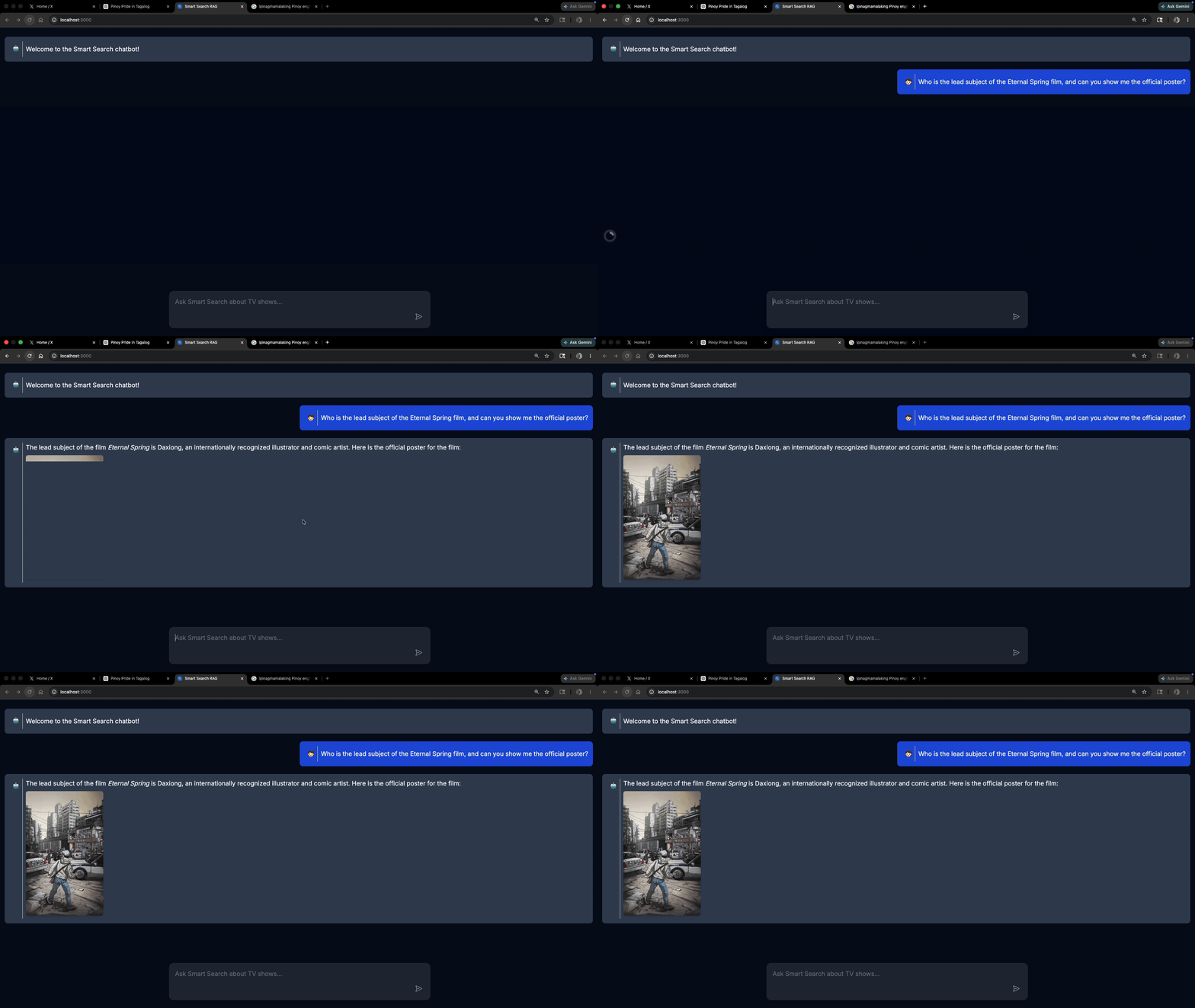
The Prompt: “Who is the lead subject of the Eternal Spring film, and can you show me the official poster?”
Expected Tool Flow:
1. search({ query: "Eternal Spring lead subject poster" }) — returns both presskit:eternal-spring (PDF) and image:eternal-spring-poster (Image), each with metadata including source_url.
2. fetch({ id: "presskit:eternal-spring" }) — pulls the full PDF body so the model can answer the “who is the lead subject” half of the question. (The image result already includes its source_url from the search response, so no second fetch is required to render it.)
3. Final Output: the LLM writes a text bio of the subject synthesized from the press kit, then renders the poster inline as .
This is what it should look like:
Conclusion
By moving away from siloed search and embracing the Multimodal feature, we’ve created a chatbot that understands context regardless of format. Whether your data is locked in a 15-page press kit or a series of infographics, Smart Search AI and MCP provide the unified layer needed to bring those assets to life.
As always, we’re stoked to see how you extend this. Try adding more asset types to your manifest.json and see how the vision model handles different technical complexities – just keep the beta’s short-PDF limit in mind as you scale.