Get Started


Key Takeaways
Categories and subcategories enhance user experience and SEO. Organizing content into categories and subcategories in WordPress can improve visitor experience by making it easier to find relevant content and boost SEO by providing structure for search engine crawlers.
Creating categories in WordPress is a simple 3-step process. By selecting the Categories option, adding a new category, and naming it, you can efficiently organize your WordPress posts.
Subcategories in WordPress require assigning a parent category. When creating subcategories, it’s crucial to select a parent category to maintain a structured hierarchy for better content organization.
Consider upgrading to a WordPress-optimized hosting solution for improved performance. To ensure consistent website performance and organization, upgrading to a hosting solution optimized for WordPress sites can be beneficial for long-term success.
The format and structure of your site is important to its overall User Experience (UX). However, as you add more content to your site over time, keeping it organized can become overwhelming.
Fortunately, using a Content Management System (CMS) can make this easier by organizing your content into categories and subcategories. With these features, you can keep your WordPress posts properly sorted and in order.
In this post, we’ll explain how categories work in relation to web content. Then we’ll walk you through how to create and set them in WordPress in three simple steps. Let’s get started!
What Is a Subcategory in WordPress?
Before we get into how to create categories and how to get a subcategory out of a parent category in WordPress, it’s important to first understand what these terms mean.
Categories are a WordPress feature that let you group related blog posts together:
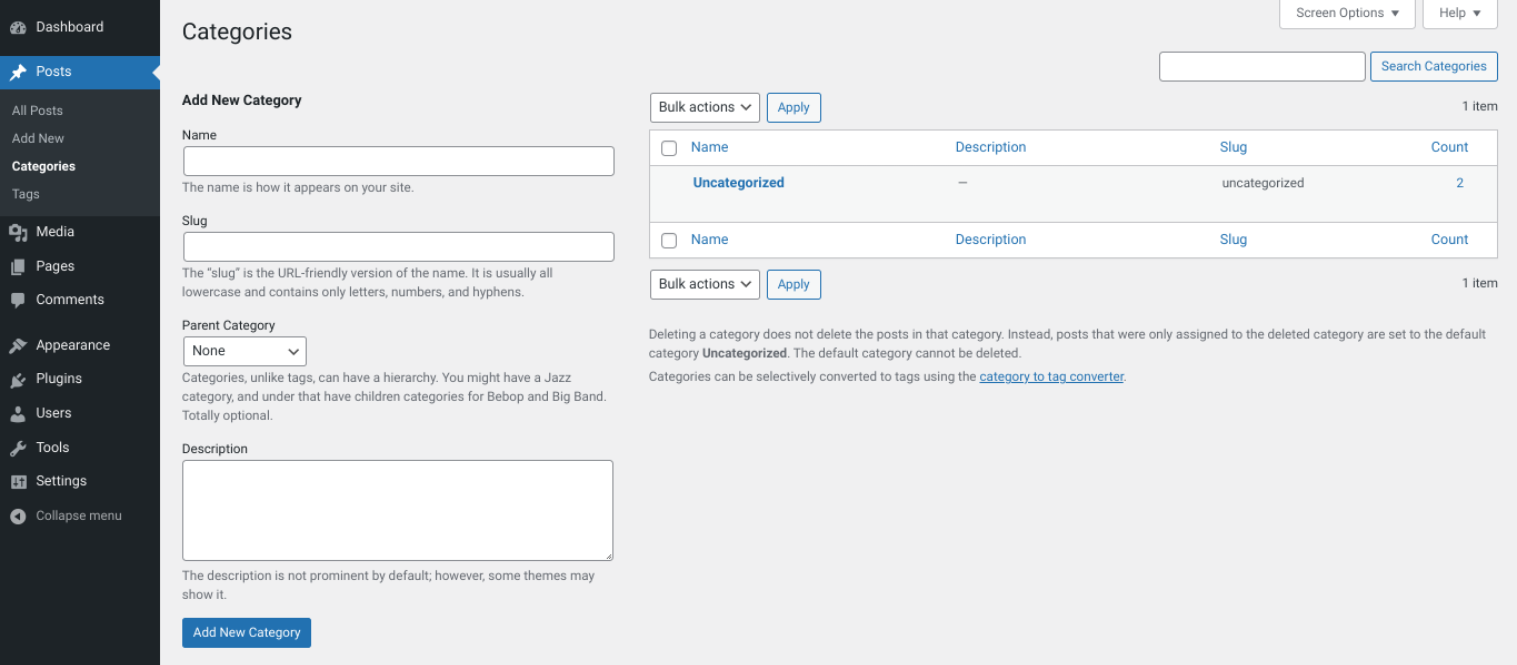
They’re commonly used to better organize site menus and navigation. You can also create pages dedicated to each category so your visitors can see archives of related posts displayed in one place.
Also referred to as “child categories,” subcategories are niche groups within your parent categories that get even more specific about the post topic. For example, you might have a parent category named “Exercise” and a subcategory titled “Beginner Yoga.”
There are many benefits to using categories and subcategories in WordPress. As we mentioned, they can improve your visitors’ experience by making it easier for them to find content they’re looking for. It can also help boost your Search Engine Optimization (SEO) by giving crawlers more context for your site’s structure.
How to Create Categories in WordPress (In 3 Steps)
Now that we’ve discussed what they are, it’s time to take a look at how to create categories in WordPress. Below, we’ll take you through how to do so in three quick steps.
Step 1: Select the Categories Option from the Block Editor Menu
There are a couple of different ways you can add a new category in WordPress. We’ll go over the quickest and easiest method.
To get started, you’ll first want to browse to the WordPress post that you want to add the new category to. On the Block Editor screen, open the options menu by clicking on the gear icon at the top of the screen, then expand the Categories section to view a list of the categories currently available on your site:

Note that if you haven’t created any categories for your site yet, your only option here will be Uncategorized. WordPress adds this option by default.
Step 2: Click on the Add New Category Link
Next, click on the Add New Category link below the list of existing categories:

Once you do so, WordPress will display a few new fields you can fill out.
Step 3: Name and Save Your Category
The first field to complete is New Category Name, which is pretty self-explanatory. It should be different from any other category name on your site.
Sticking with our example from earlier, let’s say that we’re starting a health and fitness blog. One of the main categories we might add is “Exercise,” which will later be further broken down into additional subcategories:

We’re not going to select a parent category from the dropdown menu below the Name field. Finally, you can click on the Add New Category button. You’ll now be able to choose this category from the list in the options menu on future posts.
The steps above simply cover the basics. However, if you’re interested in learning more, we recommend checking out our Benefits of WordPress Categories article.
How to Create Subcategories in WordPress (In 3 Steps)
The process for creating subcategories in WordPress is quite similar to that of adding categories as we just discussed above. However, there is a key difference. Let’s take a look at how to set a subcategory of a parent category in WordPress in three steps.
Step 1: Start Editing a Post & Select the Categories Tab
To get started, navigate to the WordPress post that you want to add to a new subcategory. In the Block Editor, expand the Categories section in the Post tab of the options menu to the right.
Step 2: Click on the Add New Category Link
Again, the next step is to select the Add New Category link below the list of existing categories. From here, you can add the new subcategory’s name, making sure it’s unique and specific.
Step 3: Select a Parent Category for Your WordPress Subcategory
The third and arguably most important step in creating a subcategory is to assign it to a parent category. For example, let’s say that we want to add the “Beginner Yoga” subcategory that we mentioned earlier to the “Exercise” category.
To do so, we’ll enter “Beginner Yoga” as the name, then select Exercise from the Parent Category dropdown menu:

By assigning it a parent category, we’ve now created a subcategory. Then you can click on the Add New Category button to complete the setup.
You can access these categories and assign your posts to them any time you’re using WordPress. Additionally, you can locate, modify, and optimize your categories and subcategories by navigating to Posts > Categories in your admin dashboard.
Do More With WP Engine
WordPress is a powerful CMS that can help you create a robust website. However, when you’re continuously writing and publishing new content, it’s important to make sure you’re staying organized.
As we discussed in this article, creating categories and subcategories in WordPress offers a quick and easy way to group related posts on your site. Not only can this help provide better UX for your visitors, but it can also enhance your SEO.
To get the most out of WordPress and ensure you’re consistently delivering seamless, reliable performance, you might also consider upgrading to a hosting solution that’s optimized for WordPress sites. Check out the various plans we offer here at WP Engine to learn more!