Get Started

Key Takeaways
Develop websites offline to save costs and speed up development. Building sites locally eliminates hosting expenses and allows faster testing of features, reducing overall development time.
Test new themes and plugins in a safe environment to prevent live site issues. Local development enables risk-free experimentation with add-ons before implementing them on the live site.
Use local environment to test WordPress updates for compatibility and functionality. Avoid potential errors by testing updates locally before applying them to the live site.
Troubleshoot WordPress errors effectively in a local environment without risking the live website. Replicate and experiment with fixes on a copy of the site to enhance troubleshooting skills and prevent live site disruptions.
While you’re working on your WordPress site, you may occasionally update a plugin or theme only to find out that it breaks a particular page or feature. With a local development environment, you can troubleshoot these kinds of errors, and even avoid them in the first place.
Having a local development environment also means you don’t need to pay for additional hosting in order to set up a test site. In fact, you can create as many local WordPress sites as you want, and use them to try out changes before you implement them on your live site.
In this article, we’re going to give you a crash course in local WordPress development environments. Then, we’re going to talk about four key tasks you can accomplish with this type of local site.
Let’s get right to it!
An Introduction to Local WordPress Development Environments
Every website requires a server in order to run. In most cases, you’ll pay for and use a remote server, which other people can access from all over the world in order to see your site. However, you can also create local websites, which only you can see.
Having a website only you can access may sound strange at first, but it can come in handy in a lot of situations, such as for:
- Creating test websites to try out new themes and plugins.
- Getting a head start on your site’s development, so you don’t have to pay for hosting right away.
- Troubleshooting errors within a safe environment.
For a website to function, however, it requires a particular combination of software. That software is what we call a development environment. WordPress in particular needs an environment with PHP, a database, and specific server software.
Typically, your web host will provide you with a server that has all the necessary pieces already set up, so you can get right to work on your website. However, for a local environment, you need to make sure all the components are installed directly on your computer.
There are several ways to do this, from installing the software manually to using development stacks such as MAMP or WAMP. However, there are also tools that simplify the process by doing all that work in the background, enabling you to create and delete local websites at will.
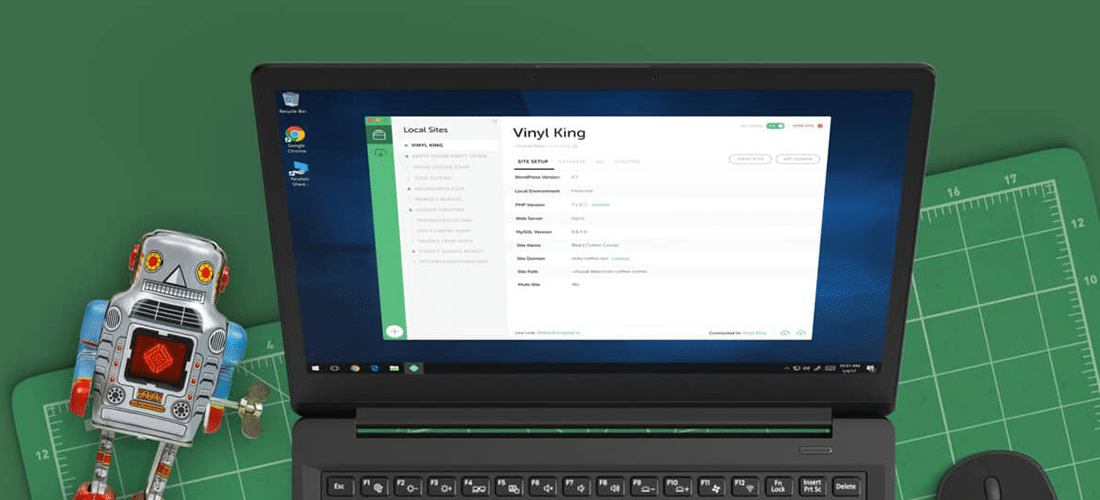
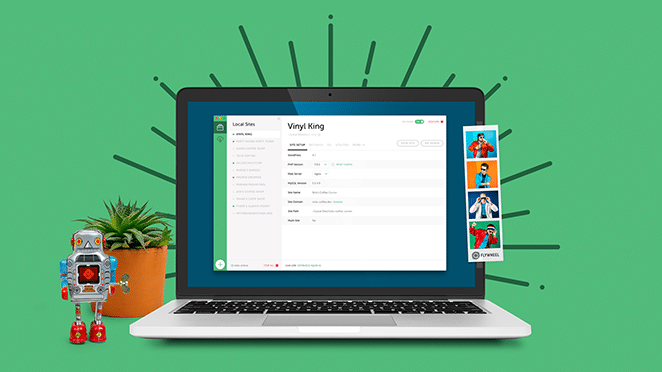
Local, for example, sets up a development environment you can use to easily create as many sites as you want:
This tool also includes a lot of useful features. It enables you to clone sites, ‘disable’ them when they’re not in use, and much more. If you’re in need of a local site, this is often the simplest solution.
4 Ways you Can Use a Local WordPress Development Environment
As you can see, setting up a local environment for WordPress isn’t hard if you have the right tool. If you’re still not convinced as to why you should take this step, however, let’s look at four crucial tasks you can accomplish using a local site.
1. Develop Your Website Offline
In a normal scenario, you might end up paying for hosting over several months while you work on your website. Depending on your provider, these costs can add up. Getting a head start on your website offline can be an excellent way to save some money.
With a local WordPress development environment, you can build entire websites without signing up for a web host. Then, when you’re ready, you can pick out a hosting plan and migrate your site to your new provider.
Moreover, when you work on your website in a local environment, everything will run and load faster (since you aren’t communicating with a remote server). That means you get to test more features quickly, cutting your development time down significantly.
2. Try Out New Themes and Plugins
Plugins and themes are one of the best parts about using WordPress. You have thousands of options to choose from, so finding one that can help you implement the functionality you want is usually simple.

The problem is that the more plugins you use on your website, the greater the chance is that you’ll run into compatibility issues. These can cause problems with your plugins, your active theme, and even WordPress itself.
If you want to play it safe, you should always back up your website before adding any new plugins or switching themes. That way, you’ll have a clean restore point to use in case something goes wrong.
With a development environment, however, you can avoid that risk altogether. You can set up a local copy of your website, and test any new add-ons there before installing them on your live site. That way, you’ll quickly figure out which plugins and themes don’t play nicely with one another, and you’ll be able to look for safer alternatives.
3. Test WordPress updates
Every so often, WordPress rolls out massive updates that make significant changes to the platform. When this happens, it’s relatively common for compatibility errors to occur with your plugins and themes, or for other unexpected issues to arise.
In fact, some people recommend not updating to the latest version of WordPress right away. That way, early adopters can see if the new update doesn’t play nicely with any specific plugins or themes, and developers can get started on fixing the issues.
However, not updating your site poses security risks. To avoid both problems, you can always test new updates for yourself in a local environment. This way, you’ll quickly be able to see whether your theme and all your plugins still work as intended, and you’ll notice if any of your content seems affected.
If you run into any issues after you upgrade WordPress, then you know you shouldn’t update your live site until those problems get fixed. Fortunately, this process usually doesn’t take very long.
4. Troubleshoot WordPress Errors

Sooner or later, you’re going to run into an error while using WordPress. A lot of common WordPress bugs are very well documented, so fixing them shouldn’t be a problem.
Troubleshooting a website yourself, however, carries its own share of risk. For example, you might edit a file you shouldn’t, or try the wrong approach when it comes to fixing your site. If that happens, you can end up making the problem worse rather than better.
A local development environment can really help out in these situations. For example, you can try replicating an error on a copy of your site, and experiment with various fixes. In the process, you won’t have to worry about breaking your live website.
Even if you can’t replicate the error, you can always use your local site to explore the way WordPress works. You can learn which files you can edit safely, and which ones you shouldn’t touch. That way, the next time you run into a problem on your real website, troubleshooting it should be much easier.
Conclusion
If you spend a lot of time using WordPress, local development environments are one of the best weapons at your disposal.
There are plenty of ways to set up one of these environments, but we recommend using a specialized tool such as Local. That way, you’ll have a much easier time creating and managing your local sites.