
User Portal Domain Management
Adding a domain in the User Portal should be done when you are ready to go live with your WordPress® website and should be done before modifying DNS records.1 This process is necessary to ensure that after DNS is pointed, your traffic can be routed to the correct environment.
Learn how to add a domain in this guide, as well was what pre-verification means, and see related terminology.
Add Domain in User Portal
A new domain must be added to the WP Engine User Portal in order to properly route the domain to the intended WordPress website. A custom domain can be added to any Production environment. Additionally, Premium plans may add a custom domain to Staging and Development environments.
Prefer to watch a video?

Was this video helpful?
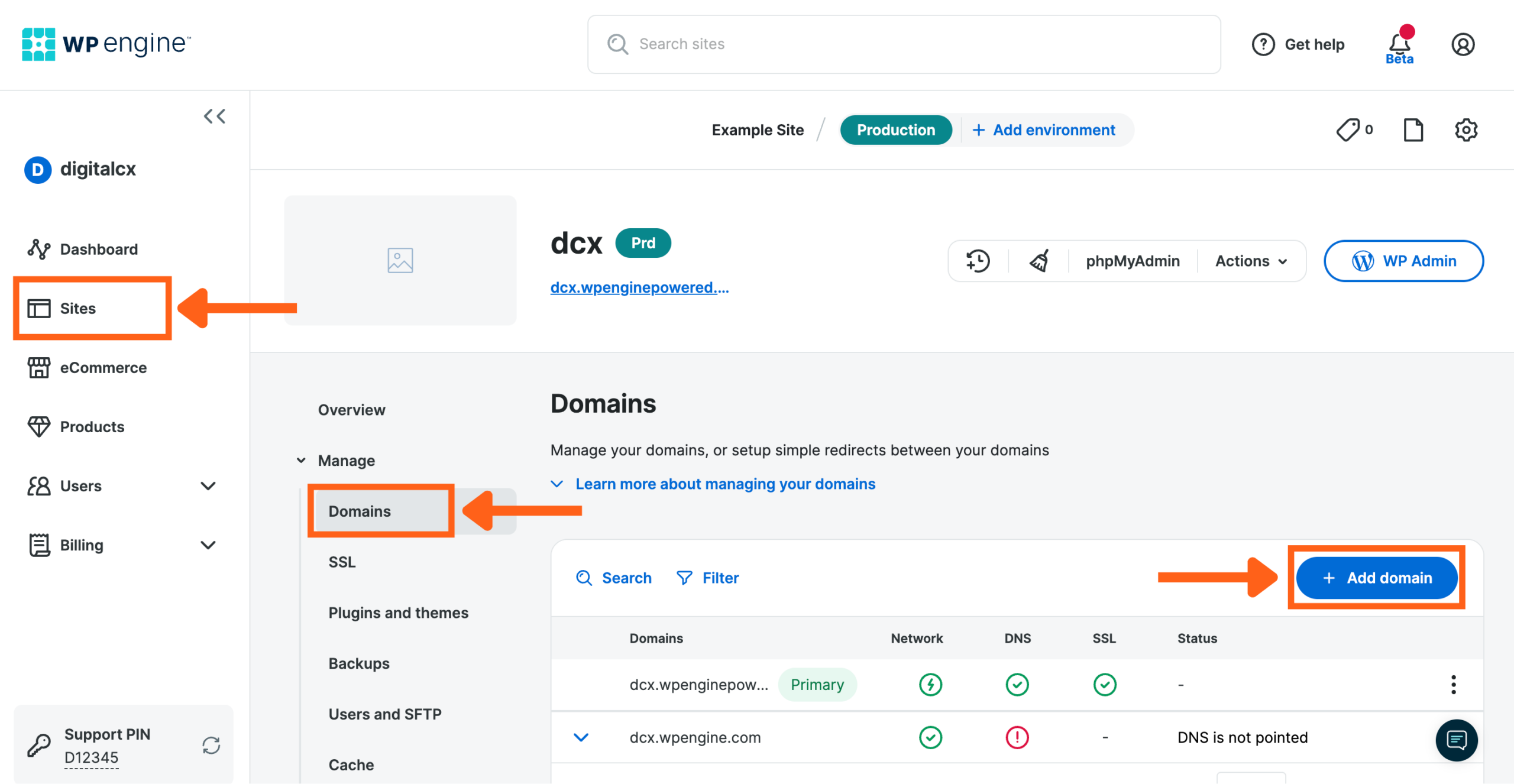
- From the Sites page, select the environment name
- Choose Domains from the secondary left-hand menu (You may have to expand the Manage dropdown section)
- Click Add Domain on the right
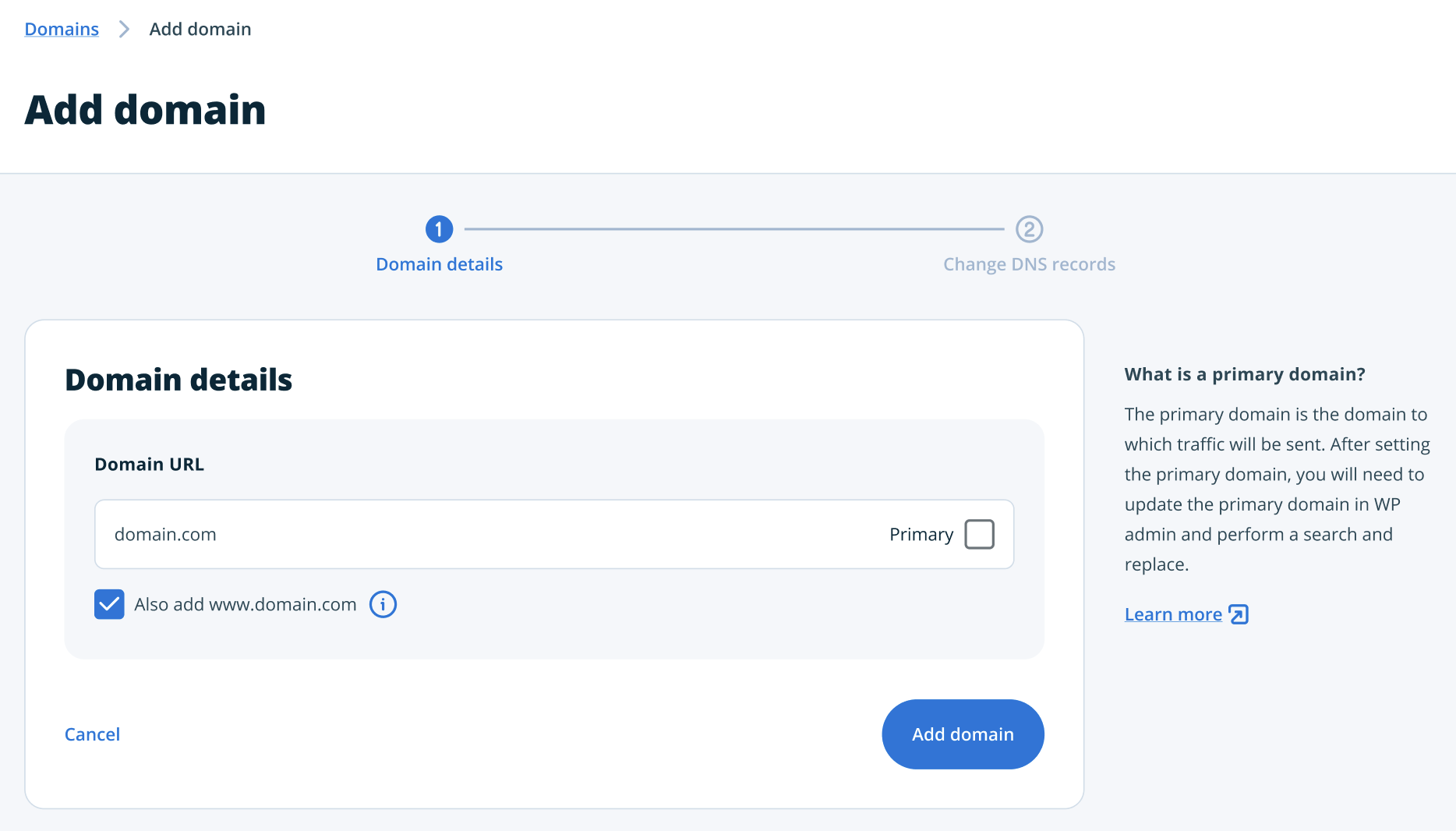
- Domain – Enter your domain name into the field.
- Also add … – Choose whether to also add the common variant. Depending on the domain entered above, this will be the same domain with or without “www”.
- Primary – Sets the domain entered as the Primary domain in the User Portal. Learn more about the Primary domain here.
- Click Add domain
- To finish going live, DNS must be pointed to WP Engine. If you want to pre verify the domain before pointing DNS to reduce downtime, skip to the pre-verification section below.
- Option 1: Automatic – If available, log in to the domain provider to point DNS automatically. Learn more about using automatic DNS configuration here.
- Option 2: Manual – If automatic DNS configuration is not available, or not needed, point DNS to WP Engine manually instead. Learn more about manually updating DNS here.
If domain pre-verification options are presented, skip to the pre-verification section below.
NOTE
Don’t forget to update the WordPress domain settings. Learn more here.
Verify Domain Ownership
Domain ownership must be verified when pointing DNS to WP Engine. This verification process starts when you add your domain in the User Portal. If you have already verified a root domain for your site then you won’t have to verify again when adding additional subdomains of the verified root domain.
Note
Domain name ownership verification will not be necessary for domains transferred by means of the duplicate domain workflow, if both environments are on the same account.
To verify ownership while adding your domain:
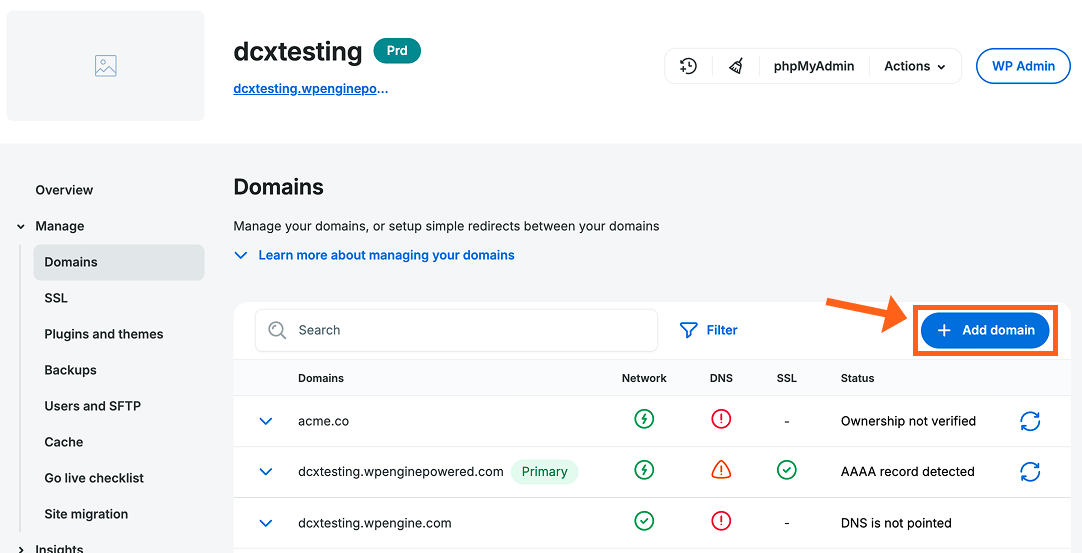
- Go to the Domains menu for an environment and click the + Add domain button.
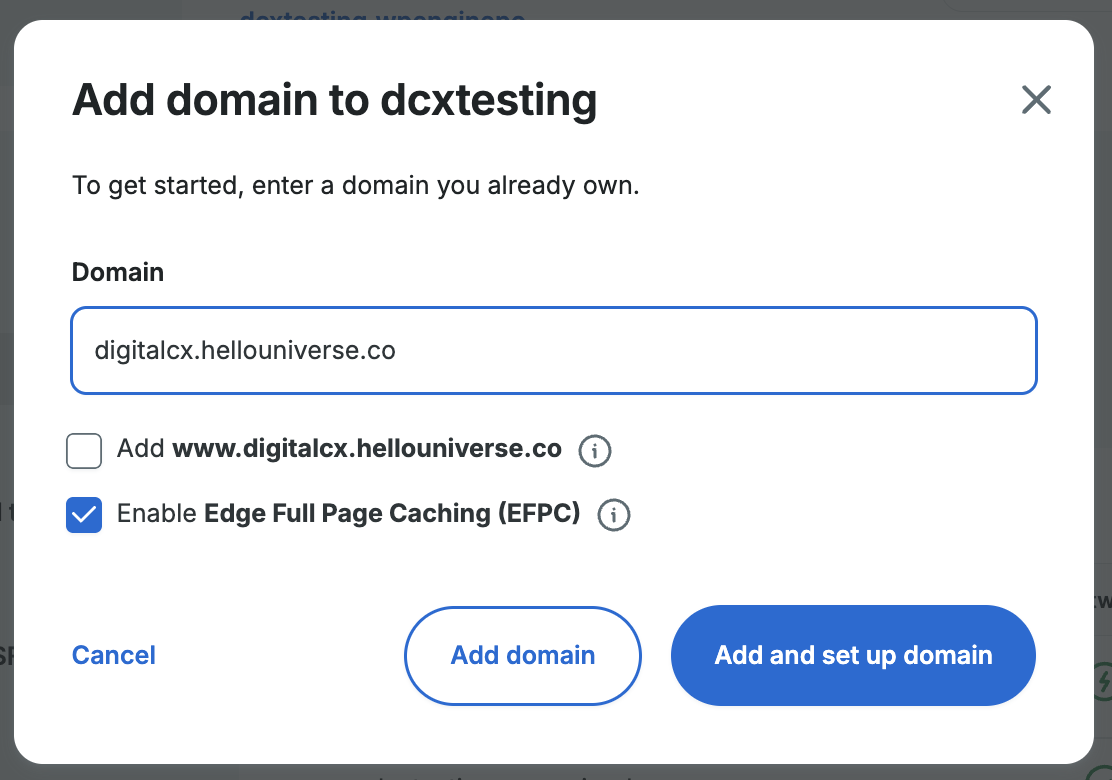
- In the next window, type in your domain name and then click the Add and set up domain button.
- In the next window, choose whether you want to verify automatically through Entri Connect, or if you want to add a TXT record manually.
- If you want to add the record manually then skip ahead to that section.
Add a TXT Record Manually - If you want to verify automatically, click the Verify automatically button.
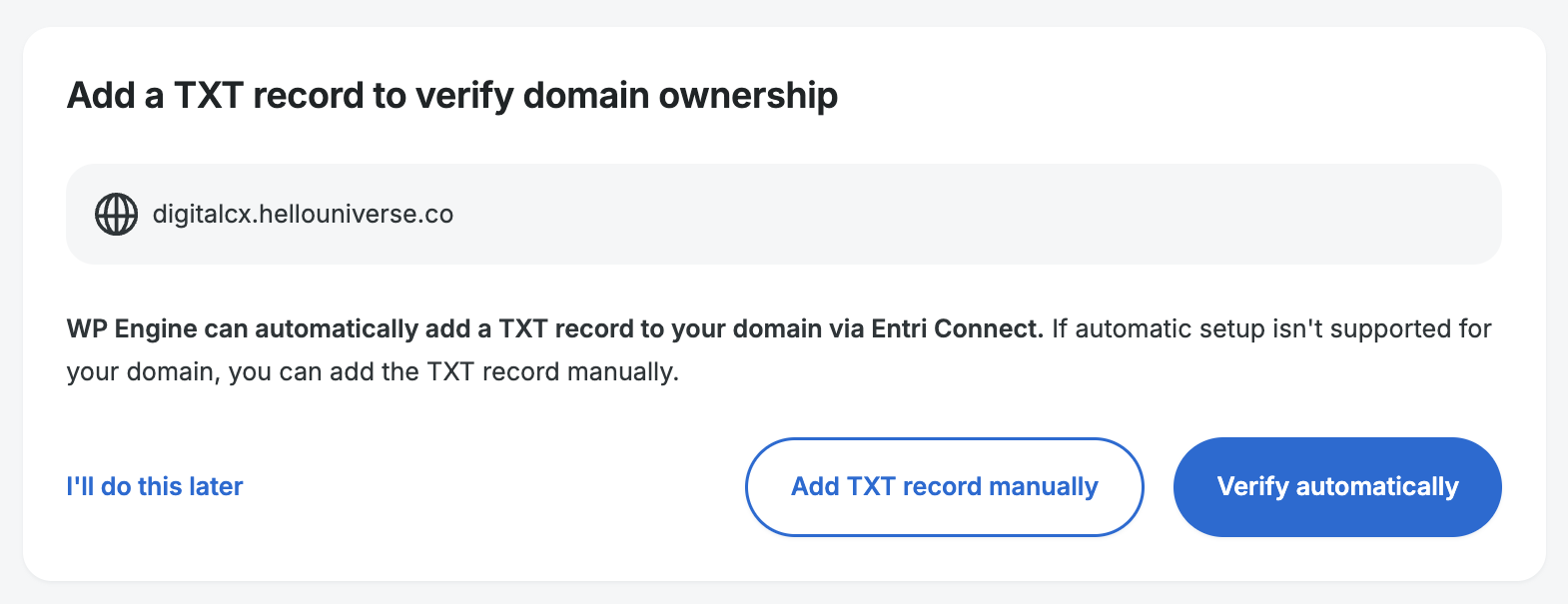
Note: If you have already verified the root domain for the domain or subdomain that you’re adding, then you won’t have to verify again and you’ll see an Update DNS automatically button, instead of the Verify automatically button.
- If you want to add the record manually then skip ahead to that section.
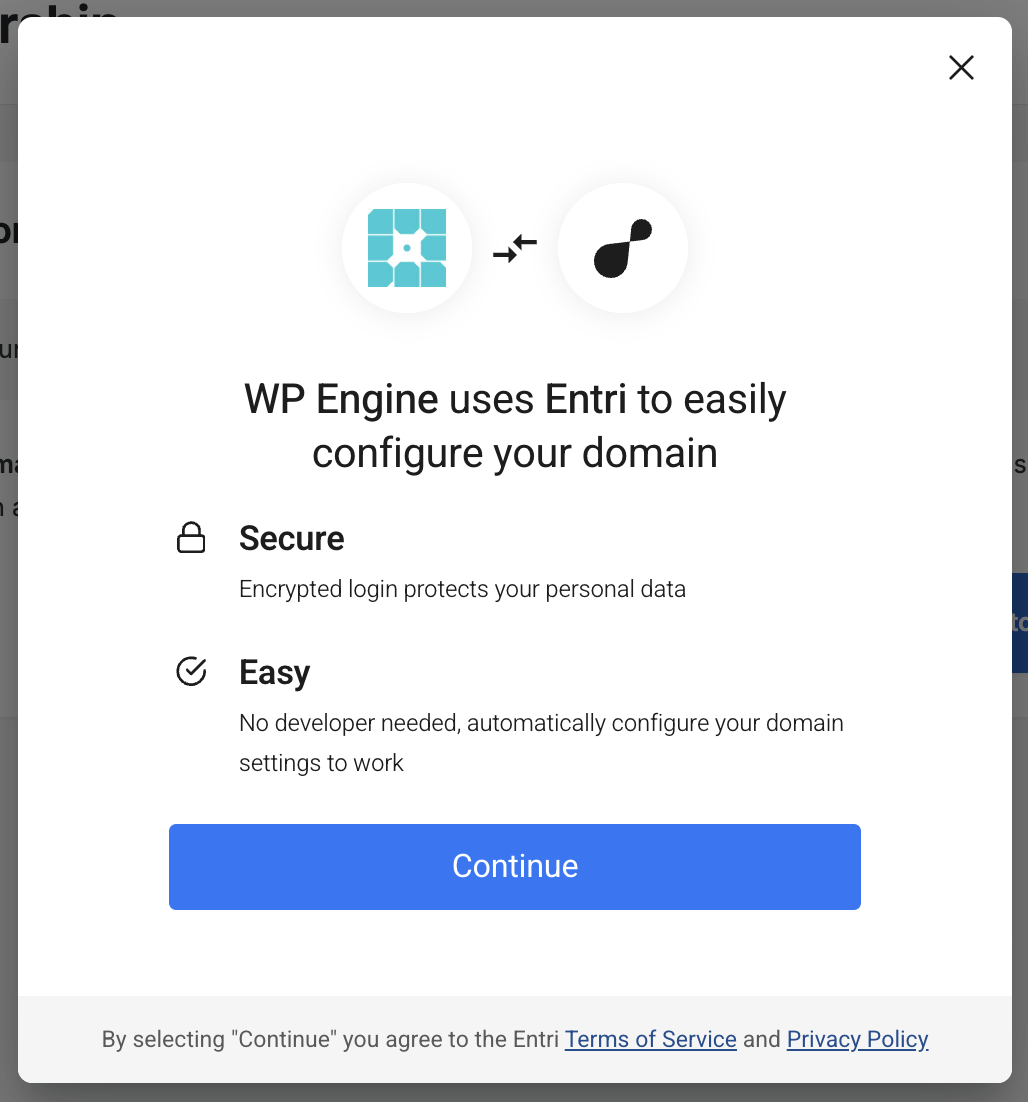
- Click the Continue button in the next window to approve using Entri with WP Engine.
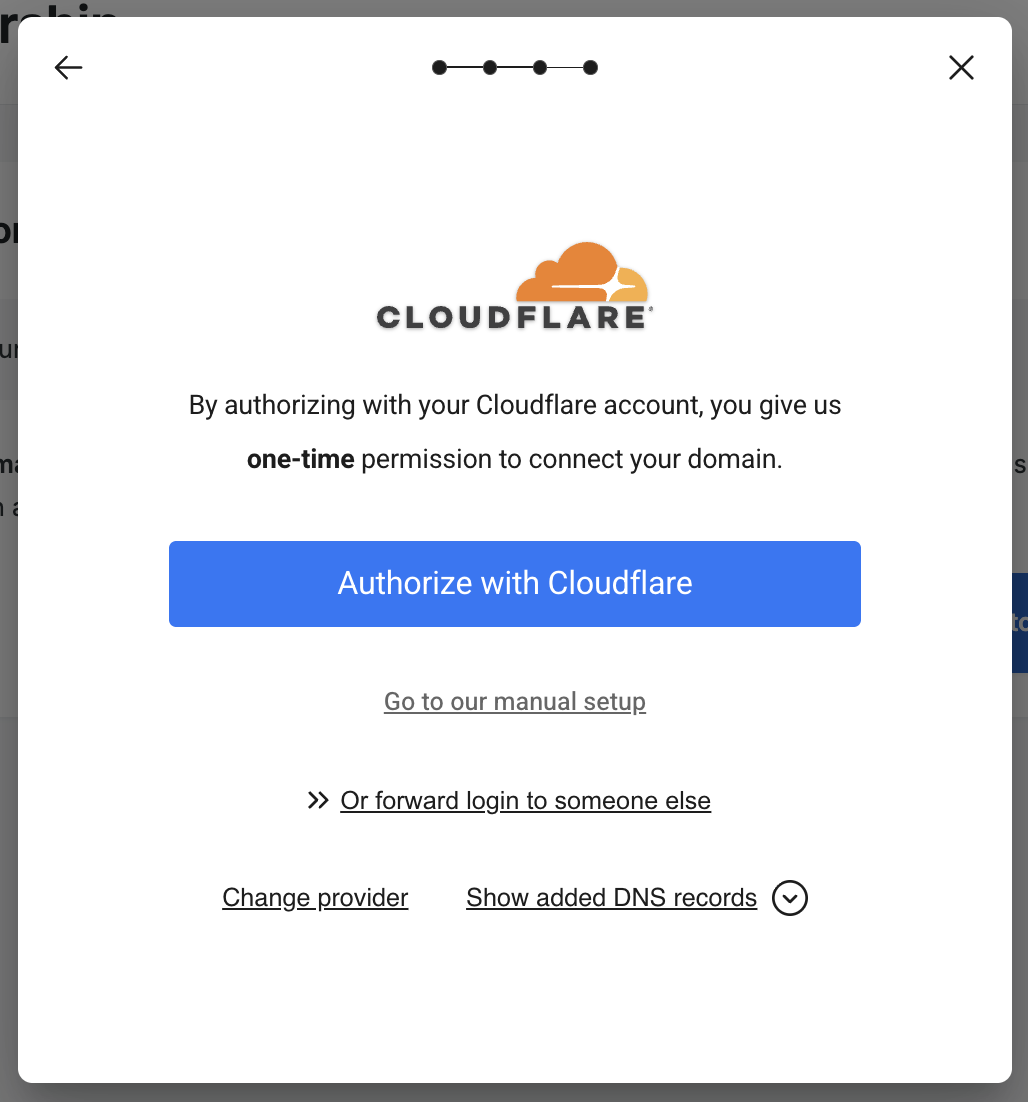
- Once it detects your DNS provider, click the Authorize button to continue authorizing.
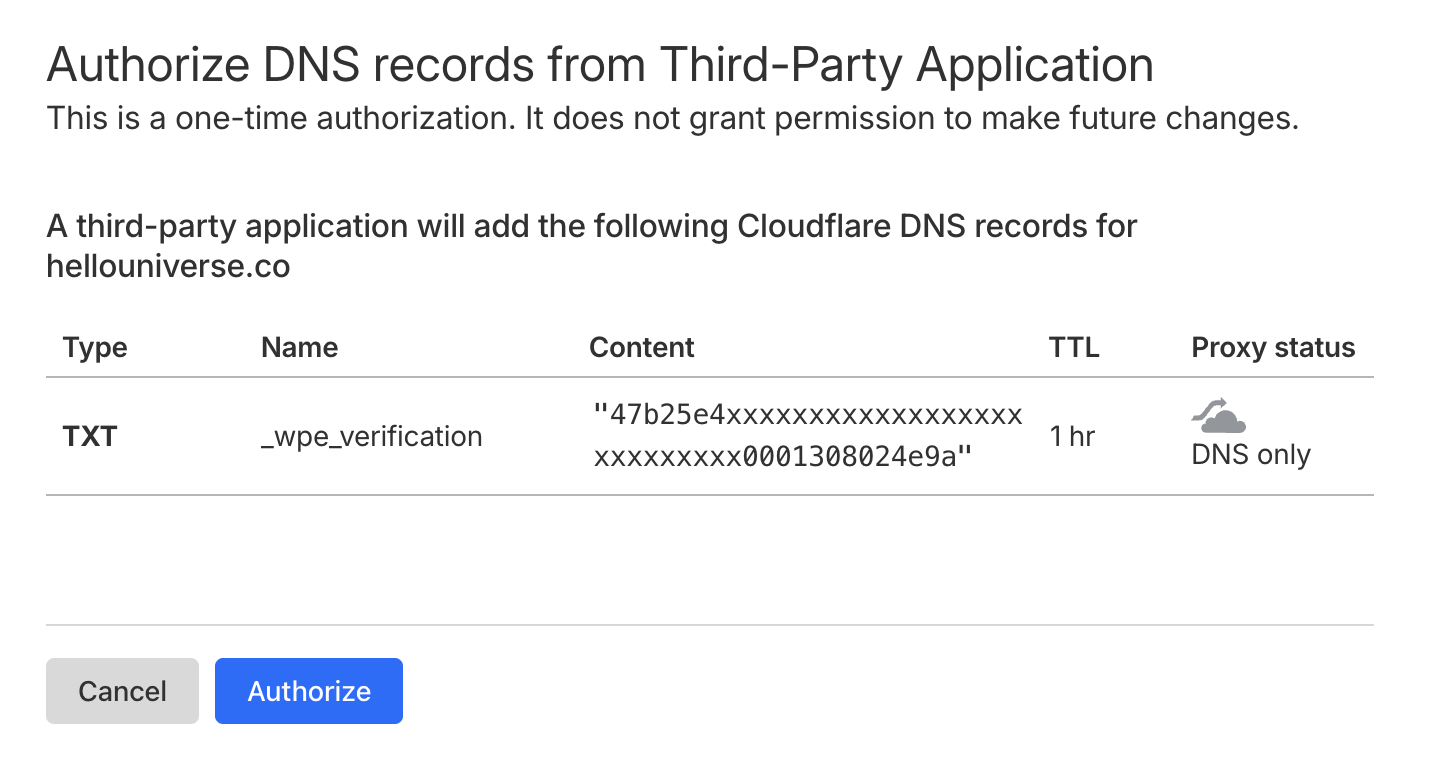
- On the next screen, review the TXT record to be added and click the Authorize button.
- After the record has been automatically added you’ll see a success message and then be redirected back to your domains list in the User Portal.
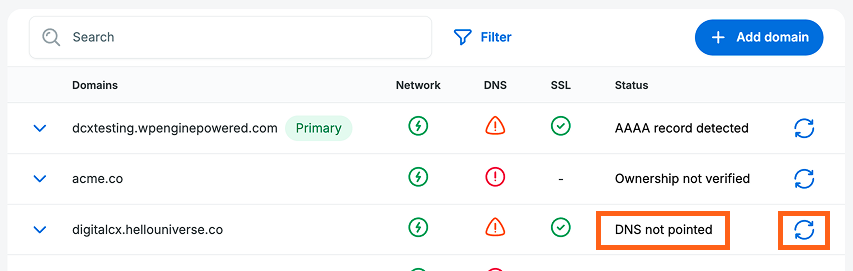
- Check status. Next to your domain in the domains list, you should now see “DNS not pointed” in the status column, confirming that you have successfully made it past the verify ownership step. If you still see a status stating that your ownership is not verified, then click the refresh button next to it to get the latest status.
Add a TXT Record Manually
If you chose not to verify your domain automatically in the Verify Domain Ownership steps, then you’ll need to add your TXT record manually.
To add your TXT record manually:
- From the domains page for an environment click the + Add domain button.
- In the next window, type in your domain name and then click the Add and set up domain button.
- Click the Add TXT record manually button.
Note: If you have already verified the root domain for the domain or subdomain that you’re adding, then you won’t have to verify again and you’ll see an Update DNS automatically button, instead of the Verify automatically button.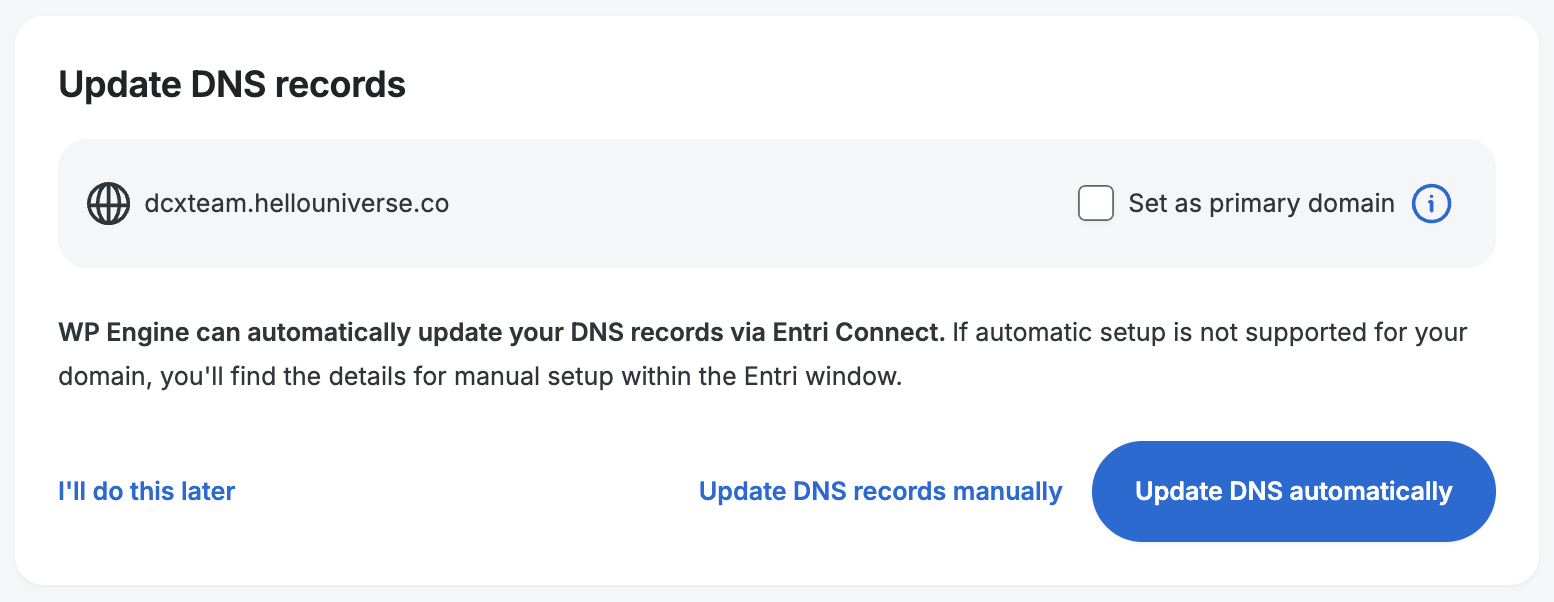
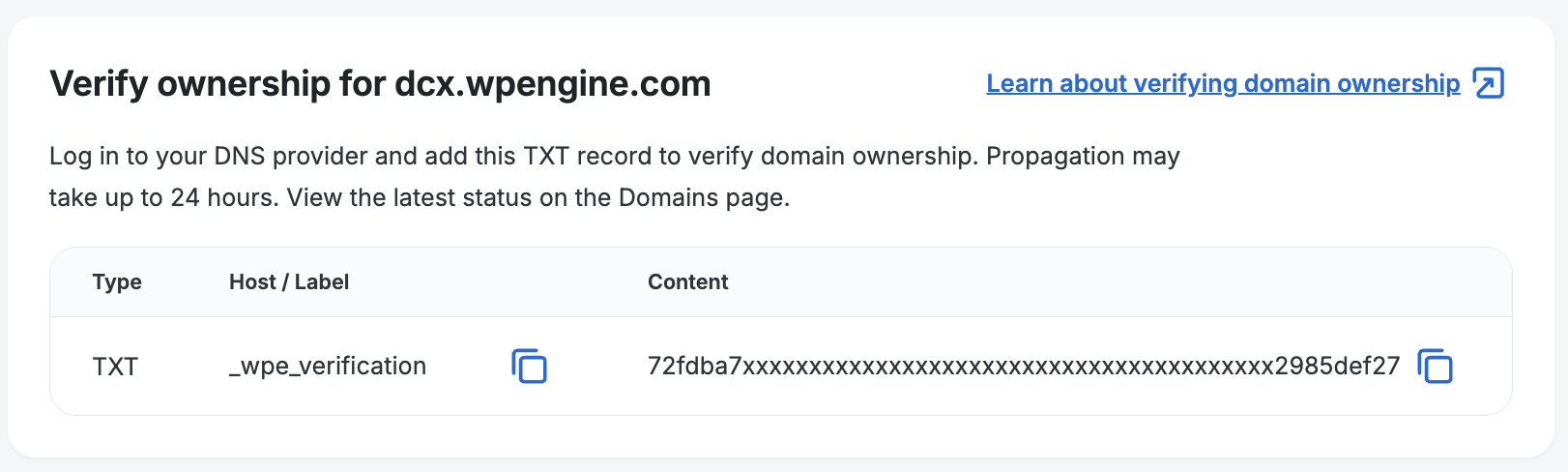
- Copy the Host and Content fields shown for your TXT record values.
- Log into the DNS host for your domain such as GoDaddy, Cloudflare, etc.
- If you don’t know your provider you can use a tool like https://www.whois.com/whois to look it up. Your provider will usually be the listed Registrar. If you pointed your DNS nameservers from your registrar to another DNS host, then the nameserver values will indicate your DNS host.
- As an example, the nameserver values you see might look like this:
sloan.ns.cloudflare.commarek.ns.cloudflare.com- This would indicate that your DNS host is cloudflare.com.
- Find the list of your domains at your DNS host and select the relevant domain name.
- Find and select the DNS settings or DNS records menu for your domain where you can add new DNS records.
- Add a new DNS record with the values you copied from the User Portal:
- Type: TXT
- Name:
_wpe_verification- This will be the Host value you copied from the User Portal.
- Content (example):
72fdba7xxxxxxxxxxxxxxxxxxxxxxxxxxxxxxxxxxxxxxxx2985def27- This will be the Content value you copied from the User Portal.
- Once you’ve saved your new DNS record, go back to your domains list in the User Portal portal and check the ownership verification status.

- If it says Ownership not verified, you may have to wait a while and continue using the refresh button next to the status column to retrieve the latest status.
- You can also check the propagation of your DNS record to see if it’s live yet in different DNS servers around the world. Using a website like https://www.whatsmydns.net/, you can type in your domain name (example.com), set the dropdown value to TXT, and click the Search button. If you see the DNS record you added in each of the regions in the list, then your DNS is likely fully propagated now, and you can use the refresh button in the User Portal to confirm your verification status.
- When verification is complete the status column will switch from Ownership not verified, to DNS not pointed. That’s how you’ll know that you successfully passed the ownership verification step.
Domain Pre-Validation
When pointing DNS through our Advanced Network or GES network, Cloudflare takes some time to validate your domain. This adds extra propagation time when pointing your DNS.
Our pre-validation process solves this issue of extra propagation time, by validating your domain with Cloudflare before you point your DNS. This allows Cloudflare to skip the validation check when you point your DNS.
To pre-validate your domain after you’ve added it in the User Portal:
- Click the dropdown arrow next to your domain in the domains list and click Point DNS.
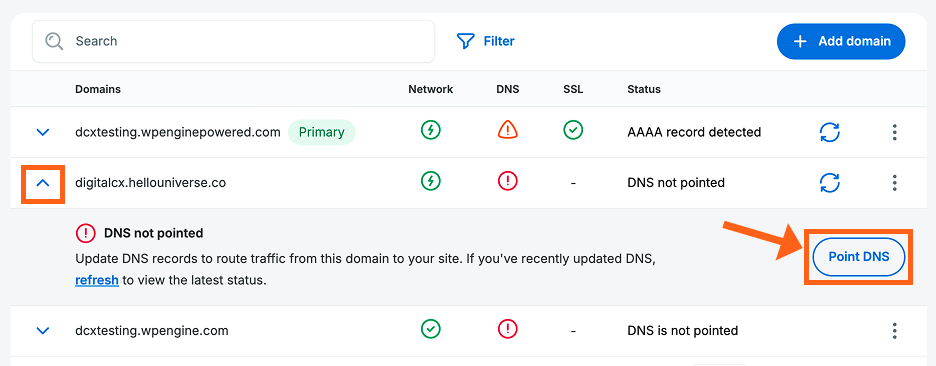
- Click the pre-validate domain link.
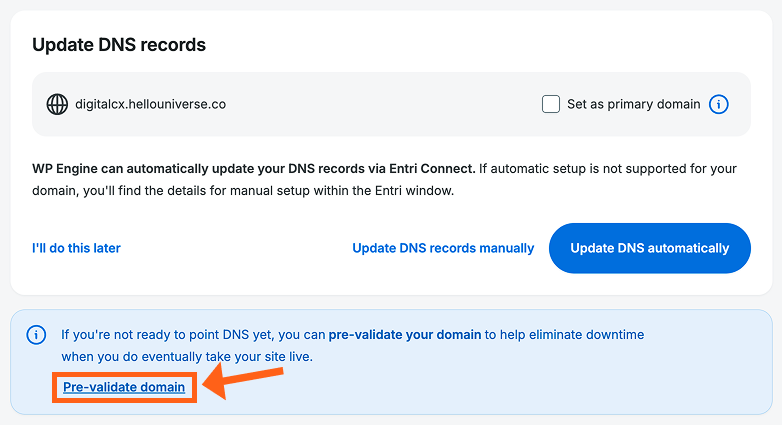
- If your domain is already pre-validated you’ll see a message confirming that it’s validated. Otherwise you can choose to add the TXT record manually or automatically.
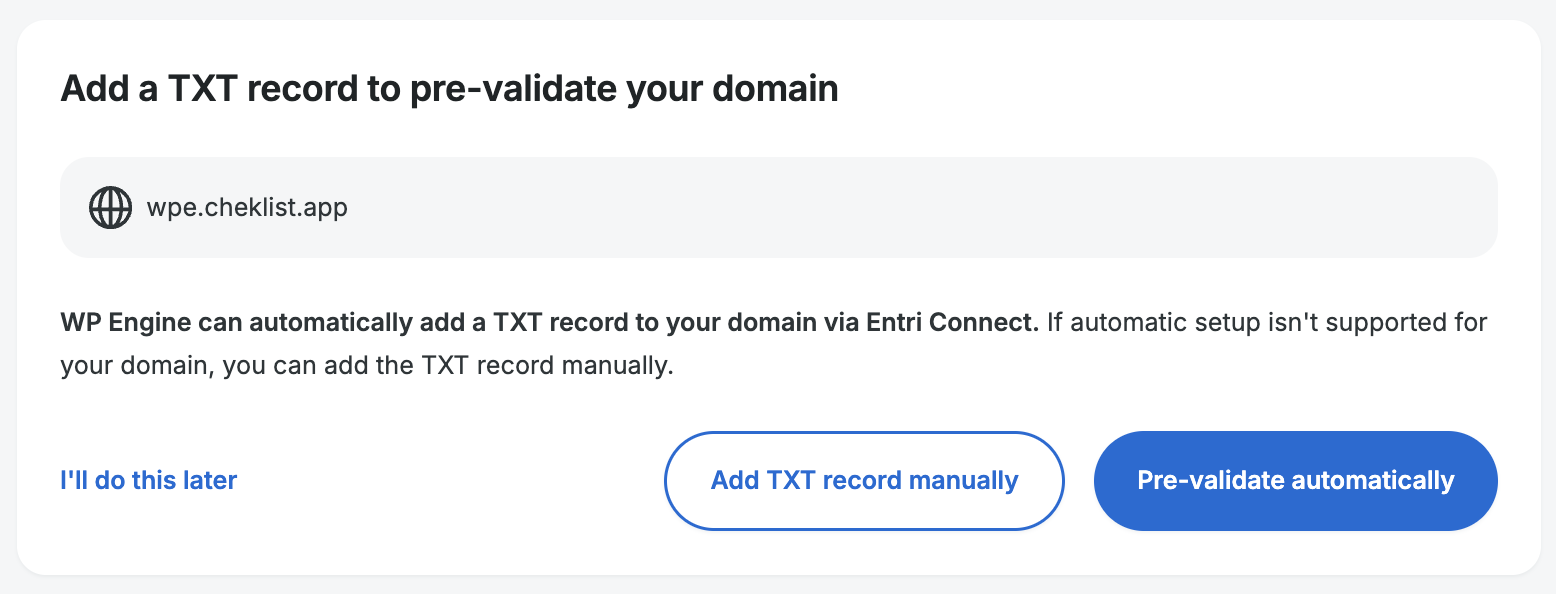
- Automatically: Select the Pre-validate automatically button.
- You’ll then see a popup where you can click Continue to connect to your DNS host with Entri connect.
- Then you’ll see a popup where you can confirm your DNS host and select the Authorize button.
- Then you’ll see a screen with the TXT record to be added where you can click the Authorize button to finish adding the TXT record.
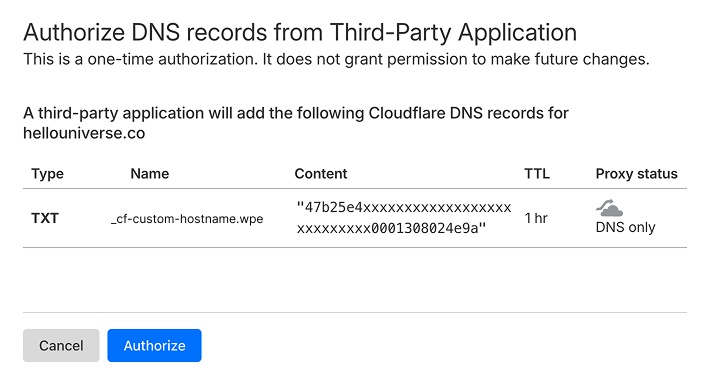
- You’ll then see a popup where you can click Continue to connect to your DNS host with Entri connect.
- Manually: Select the Add TXT record manually button. You’ll then see a page with the name and contents of the TXT record that you can add manually at your DNS host.
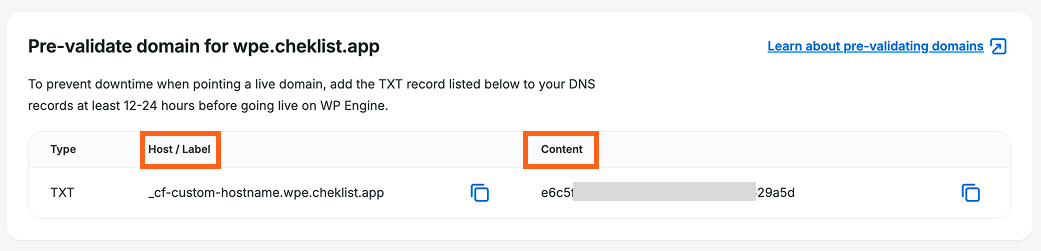
- Automatically: Select the Pre-validate automatically button.
Primary Domain
The “primary” domain is a WP Engine configuration setting designed to help ensure domain and platform functionality operate as expected. The primary domain should be set to the main domain of the environment that will resolve in the browser once live. In a multisite, this is the main site domain.
The primary domain has many functions, but most significantly it’s used when running the automated database search and replace when copying or restoring a site. Be sure to set the correct primary domain when going live.
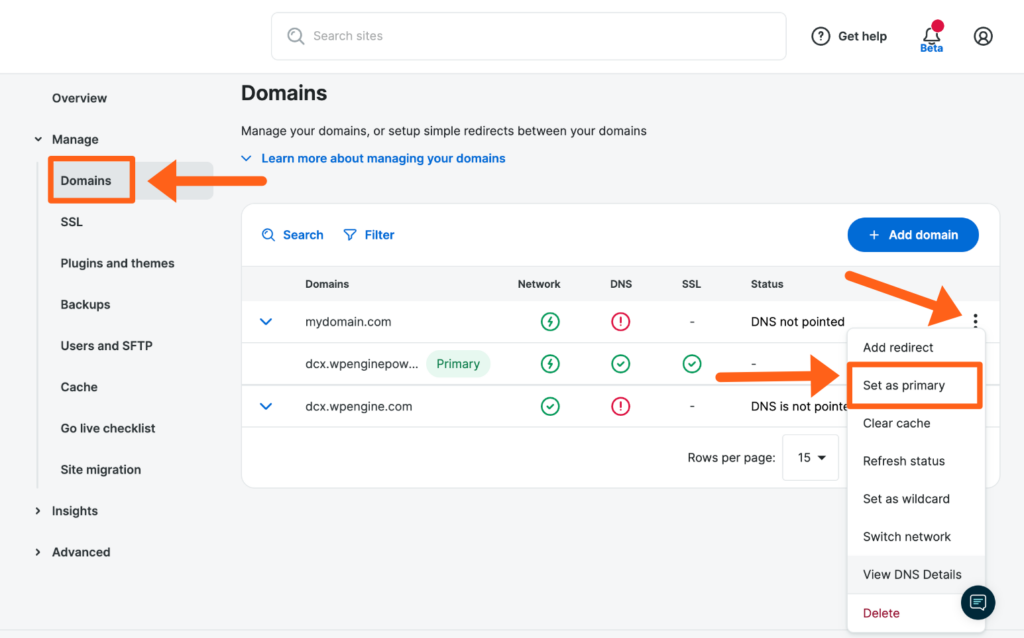
- Next to the domain that should be made primary, open the 3 dot menu icon
- Click Set as Primary
NOTE
A Primary domain cannot be a subdirectory (EX: domain.com/blog). For more information, review this guide.
Domain-level Redirect
A domain-level redirect tells the WP Engine platform to immediately send requests from one domain to another. For example, if your primary domain is mydomain.com then requests to www.mydomain.com should immediately forward. Doing this as a domain-level redirect in the User Portal will ensure the redirect can be performed as quickly as possible. A domain-level redirect will also ensure any 301/302 redirects configured in the User Portal for a domain will function for all domains redirected to it, now and in the future.
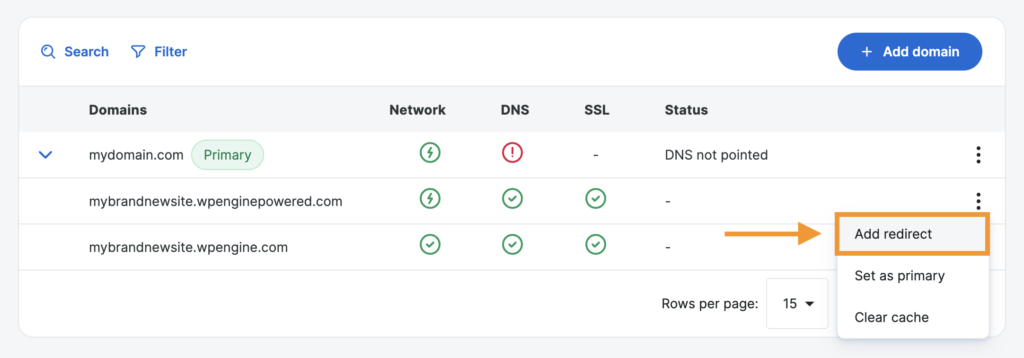
- Locate the domain name to redirect
- Click the 3 dot menu icon to the right
- Select Add redirect
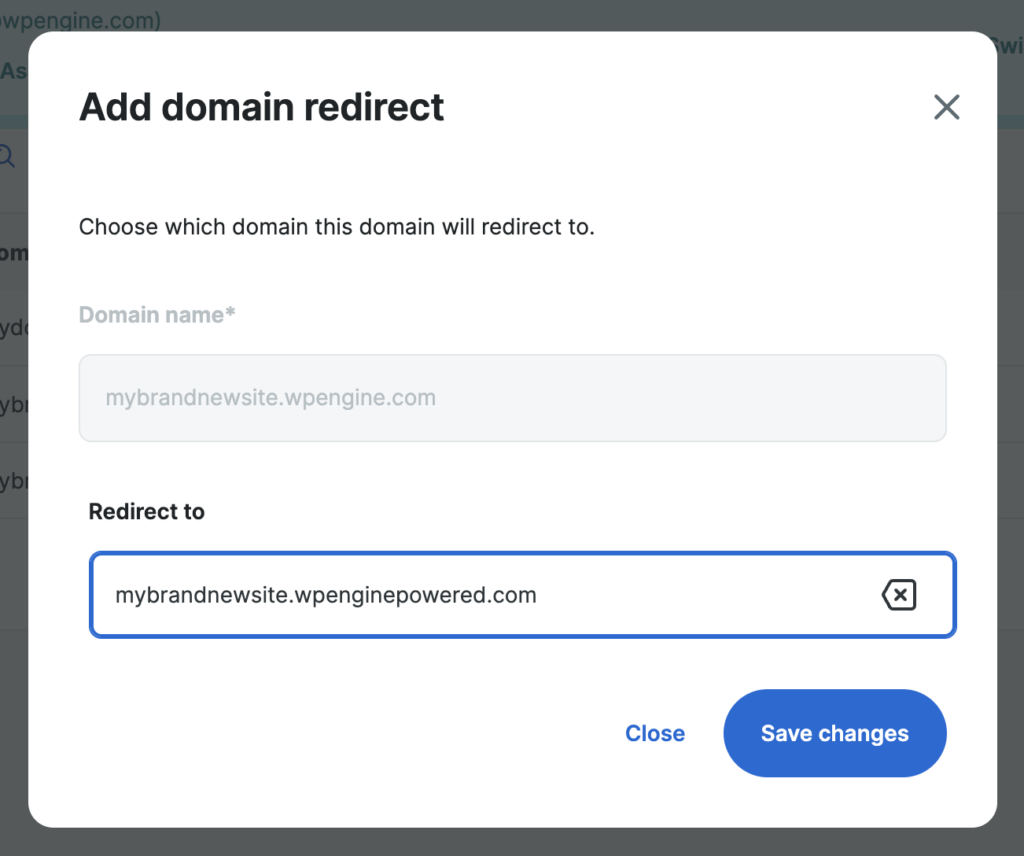
- From the dropdown, select the domain you’d like to Redirect to
- Click Save Changes
You may find that redirecting at the domain level impedes a redirect set elsewhere, causing a broken redirect or a redirect loop. Additionally, if you’re attempting to set a 301 or 302 redirect from the User Portal and cannot select the desired domain from the dropdown, there is like a conflicting domain-level redirect set. In cases such as these, the domain-level redirect would need to be removed or updated to another domain.
Finally, only top level domains and subdomains can be redirected using a domain-level redirect, as only these can be added to the Domains list. To redirect a subdirectory or subfolder, see the Web Rules Engine instead.
Duplicate Domains
To ensure a domain can direct traffic to the intended environment, it can only be applied to one environment at a time. The same domain cannot be added to multiple environments across any WP Engine accounts. The following error will be shown if attempting to add a domain that is already associated with another environment.
Validation failed: Name is already in use on different backend. Please choose a unique name.
The search bar at the top of the User Portal can be used to search for the domain across all of the accounts you have access to.
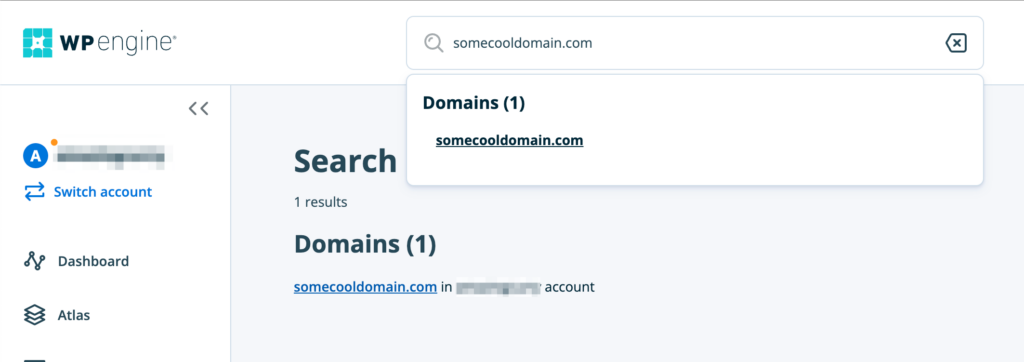
Visit the Domains page of the environment where the domain is applied, and using the three dot “more actions” menu, delete the domain. The domain can then be added to the new environment without error.
If the domain does not come up when using the User Portal search function, you do not have access to the environment where it is applied. If this is the case, please proceed with the duplicate domain dispute process below.
Duplicate Domain Dispute Process
If you do not have access to the environment where the domain is currently applied, you will need to verify ownership of the domain so WP Engine Support can relocate it on your behalf.
- Log in to your DNS provider and add the following TXT record:
wpe-verification=yourenvironmentname- Be sure to replace
yourenvironmentnamein this record with the specific name of the environment you’d like the domain added to.
- Contact WP Engine Support
- Our team will verify ownership via this DNS record then add the domain to the requested environment.
Domain Status
Updating a website’s DNS can be overwhelming. With over 130,000 customers hosted on WP Engine, we know the struggles of managing tons of domains. We want to make it easy to understand the status of your domain’s DNS records and if they are properly configured to serve traffic from your WP Engine environment.
The domain SSL, DNS, and Network statuses are displayed in columns next to each domain in the User Portal on the main “Domains” page.
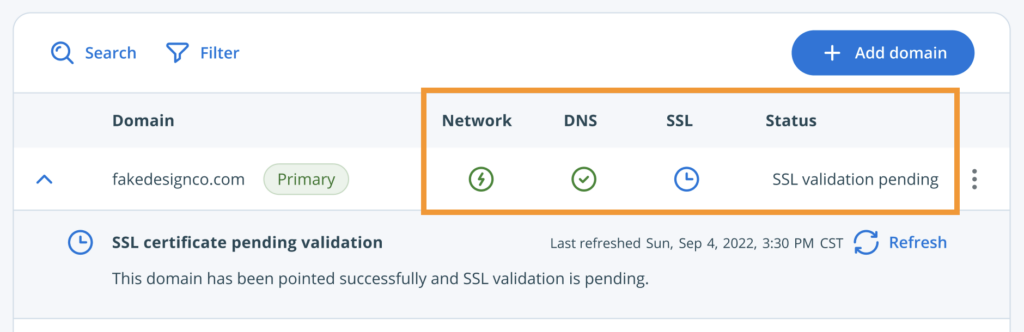
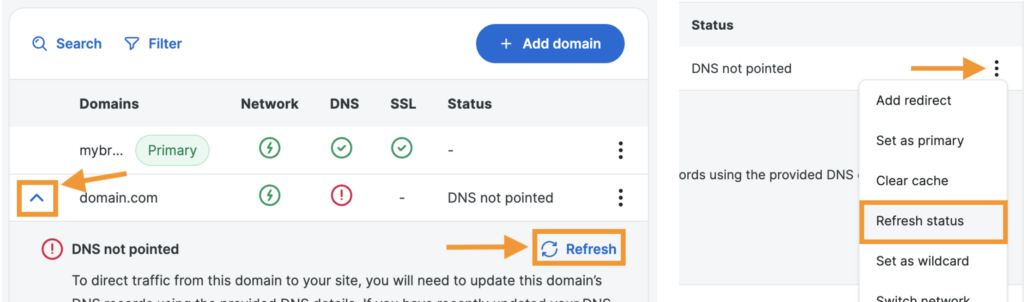
If a change has been made, the status can be checked by expanding the dropdown section for the domain and clicking the Refresh option to the right or by clicking Refresh Status under the three dot menu icon.
Domain Status Descriptions
SSL – Indicates if the SSL has been enabled or not. This column displays the status of both network SSL and domain SSL. Hovering over the status in this column will display SSL issuer and expiration date.
Once DNS has been verified as pointing to the advanced network or Global Edge Security, Cloudflare’s network SSL will enable automatically. In this case, HTTPS will be forced on all pages automatically and no additional SSL needs to be added be added. If additional SSL is needed (like Let’s Encrypt or a third-party certificate) this can be managed on the “SSL” page instead.
- Error
- There is no SSL certificate, or the domain is not accessible.
- Expired
- The SSL certificate has expired.
- Enabled
- SSL has been added.
Network – The network this domain uses. Compare network options here.
- Legacy Network
- This is the legacy network address. DNS should no longer be pointed to this legacy CNAME, as it will reach end-of-life in the future.
- The advanced network domain or Global Edge Security (GES) domain should be used when pointing DNS instead.
- Advanced Network
- WP Engine’s more performant and secure advanced network. In most cases, DNS will be pointed to the advanced network.
- Read about the advanced network here.
- Global Edge Security
- Global Edge Security is a paid product extension and will be applied at a network level to increase security and performance. If GES is applied to your plan, DNS should be pointed to this network.
- Learn more about GES here.
DNS – Current domain verification and DNS state at the last check. Use the three-dot actions menu and click “Refresh status” to fetch a more current state.
- DNS not pointed (not verified)
- Domain ownership is not verified, and DNS has not been pointed to WP Engine.
- Domain verification occurs after pointing DNS to WP Engine. Speed this process up by pre-verifying the domain before pointing DNS.
- DNS not pointed (verified)
- Domain ownership has been verified, and DNS has not been pointed to WP Engine. Learn how to point DNS here.
- Pointed
- DNS has been confirmed pointing to WP Engine.
- Also displays the detected DNS provider, where DNS is pointed from.
Glossary
We understand DNS and domain management can be confusing and filled with terminology that may not be familiar. We’ve provided some definitions below to commonly used words and phrases on WP Engine to help reduce confusion where possible. Note that these terms are defined in the context of WP Engine and may be slightly different on other hosts. Additionally, examples provided may not be exact, but hope to provide more context and understanding.
Web host – A provider of servers that allow web content to be published to the internet. WP Engine is a managed host for WordPress. WP Engine exclusively hosts WordPress websites and actively optimizes our server configuration to provide the most secure, fastest, and best hosting experience possible. WP Engine is not a DNS host or domain registrar.
DNS – A set of rules to connect a domain and “point” traffic to a website. A and CNAME are the most common types of DNS records that direct traffic to a specific location.
Domain registrar – Where a domain is purchased and “registered” (EX: GoDaddy, Google Domains, Namecheap).
DNS provider/host – Where DNS records are configured. This may be the domain registrar, or some other host (EX: Cloudflare or Sucuri). The DNS provider will always be where the nameservers are pointed to in the domain name registrar’s settings.
IP address – A static set of numbers that identify a specific server. EX: 12.34.56.78 (Similar to the street address of a business.) WP Engine will provide this value.
A record – A type of record that only points to a static IP address. (If a business has only provided a static street address, manual updates are required when the business moves to a new location to ensure packages can still be received.)
CNAME value – A domain name managed by WP Engine to be pointed to when configuring a CNAME record. WP Engine will provide this CNAME value.
CNAME record – A type of record that points to a domain name. Used for subdomains and in some cases, apex domains. On WP Engine, we manage and provide the CNAME value used to point a CNAME record. By pointing with a CNAME, traffic can be directed “flexibly” as the true destination is managed by WP Engine. (Like a P.O. box for a business. If the business moves, mail can still reach the business at the original address.)
Apex domain – The topmost domain name, excluding any prefix or subdomain. For example: domain.com or wpengine.com. Note that this does not include www.domain.com. The apex domain is also called the “root” domain, “top-level” domain, or the “non-www” domain. Apex domains can be pointed using A records or a CNAME record (with some DNS providers).
Subdomain – Any prefix of the apex domain is a subdomain. For example, the “www” prefix will create the subdomain www.domain.com and the prefix “blog” will create the subdomain blog.domain.com. It’s recommended to point subdomains using a CNAME record.
Wildcard – A catch-all rule that will encompass all subdomains and direct them to the same location. Denoted with an asterisk. For example: The wildcard *.domain.com includes www.domain.com, blog.domain.com, shop.domain.com, etc.
Live traffic – The domain is already receiving visitors, organic traffic, bots, etc. This is important when migrating because downtime will occur when updating DNS, and traffic should be interrupted as minimally as possible. For example, if you’re migrating a store to WP Engine that is currently receiving orders, this website should be considered “live”. Live traffic may be less important in the case of a static blog, where content is not often updated.
Primary domain – A setting in WP Engine that will prioritize this domain above any other assigned domains. This is especially important for redirects and web rules, to reduce “hops” and total time taken to resolve a page. As well as when copying an environment, as a search and replace is run to accurately update between primary domains.
NEXT STEP: Update your website’s URL in WordPress
