Get Started
Improving Your WP Engine Performance Score and Google Lighthouse Score
Tags:
Key Takeaways
WP Engine Performance Score and Google Lighthouse scores measure different things. Lighthouse measures client-side optimization (what visitors see), while WP Engine Performance measures server-side bottlenecks.
Caching is the quickest way to improve site performance. Sites on Legacy Network miss out on Cloudflare CDN caching and can upgrade to Advanced Network at no additional cost. Enabling Edge Full Page Cache, and increasing page cache times also helps.
NitroPack delivers fast front-end gains without code. This no-code tool improves performance scores by an average of 30% on desktop and 128% on mobile. Other client-side fixes include image optimization, lazy loading, minification, and removing render-blocking JavaScript.
Server-side housekeeping prevents hidden slowdowns. Keep WordPress and PHP current, limit redirects, and block unwanted bot traffic. Keep autoloaded database data under 800 KB, and review databases larger than 4 GB.
Plugins and themes can be major performance drains. Plugins that load on every page slow speed and can hurt conversion rates. Test in a staging environment with plugins disabled, then use tools like Slow Query Monitor or Code Profiler to find the culprits.
Both the WP Engine Performance Score and the Google Lighthouse score are available in the environment overview page for each of your production environments. Both metrics give you insight into your site’s performance, but they measure different things, and the way to improve each score varies.
- Google Lighthouse: Focuses on client-side optimization which is what can be seen after the site is compiled and presented to the web browser.
- Google Lighthouse scores are only available once a custom domain is in place.
- WP Engine Performance Score: Focuses on server-side bottlenecks which happen on the server when compiling the html for a web page before it’s sent to the browser.
- The WP Engine Performance Score and data are only available once your site has received a minimum level of traffic.
Optimize Caching
The quickest and easiest way to improve site performance is to make sure your site is cached properly. The key items to review are:
- Make sure your domain is on our Advanced Network (AN) or Global Edge Security (GES) network for DNS. If your site is on Legacy Network, you aren’t getting CDN caching from Cloudflare.
- If your site is on our old Legacy Network for DNS, you can upgrade to Advanced Network at no additional cost. If this isn’t practical, make sure an SSL certificate is in place to secure your site and improve performance.
- If your domain is on Advanced Network or GES, make sure Edge Full Page Cache is enabled.
- Extend your cache TTL to 2 or more hours using Web Rules or by using the Post and Page cache settings in the WP Engine menu of your WordPress dashboard. You can also enable Smarter Cache, which automatically sets longer TTLs for content that isn’t updated often.
To make sure your caching is optimized, review our step-by-step guide:
Optimize for WooCommerce
If you have an eCommerce site then check out or eCommerce Performance Pack for caching and performance upgrades:
Identify Problem Pages
WP Engine’s Performance page includes a list of the slowest pages on your site that receive traffic, highlighting the pages most in need of review. In the User Portal, Google Lighthouse scores are only available for your site’s homepage. However, you can manually run PageSpeed Insights to get Google Lighthouse scores for any page, or use similar tools to identify pages that need attention.
Common Client-Side Optimizations
NitroPack
One of the quickest ways to improve Google Lighthouse scores is to use WP Engine’s NitroPack plugin. NitroPack is a no-code solution that you can enable in just a few clicks. It applies a collection of front-end optimizations that can improve performance scores by an average of 30% on desktop and 128% on mobile.
Learn more about NitroPack and consider adding it to your plan.
If you’ve already added it to your account, then read more about using NitroPack:
Optimize Images
While most sites are well optimized at launch, it’s easy for oversized images to find their way onto your site. There are a number of free and paid tools and plugins you can use to optimize your images. Learn more about image optimization.
Lazy Load Images and Media
For one-page sites and sites with a long homepage, lazy loading can be a real time saver. Lazy loading prevents elements lower on the page from loading until the visitor scrolls down to see them. Because the whole page doesn’t load at once, your site can begin rendering faster.
Lazy loading is now a core WordPress feature. Since WordPress 5.5, WordPress automatically adds the loading="lazy" attribute to most images that have width and height dimensions. If needed, you can add the attribute manually to images hard-coded in themes. A good first step is to check that all images have width and height dimensions. WordPress then handles lazy loading for posts, excerpts, comments, and avatars.
If you need an automated solution, WP Engine’s NitroPack handles lazy loading automatically. Lazy Load by WP Rocket is another common plugin for lazy loading.
Make Sure Images Don’t Block Rendering
Even if an image is lazy loaded, the browser still has to decode the image data once it starts downloading. By default, this decoding happens on the “main thread,” which can block user interactions like scrolling or clicking.
Adding the decoding="async" attribute lets the browser process the image in the background while it continues to render the text and layout.
Remove Render-Blocking JavaScript and CSS
If you’ve used page test tools to check your site’s speed, you may have run across this recommendation, which can be difficult to understand. If you look at your page’s waterfall view in a tool like WebPageTest or Pingdom, you’ll likely see a number of JavaScript (.js) files loading before the “start render” line. This is known as “render-blocking JavaScript.”
The core function of JavaScript is to perform an action on a web page, like a popup or rotating images in a slider. These actions don’t need to load until your site has fully loaded its content and styles. So when these tools recommend “Defer JavaScript Parsing,” they’re really saying, “Load this later in the page instead of at the top.”
A number of plugins are available to help optimize your site’s JavaScript and CSS, including WP Engine’s NitroPack add-on.
Minify CSS, HTML, and JavaScript
Over time, CSS, HTML, and other source code files can build up and slow your site down. To speed things up, consider minifying your code.
Minification reduces the size of HTML, JavaScript, and CSS files by removing unnecessary characters, like spaces, line breaks, and comments. Less data has to be transferred, so files load quicker and your pages load faster. WP Engine’s NitroPack minifies code as part of its wider feature set, and there are also a number of plugins built for this specific task. WP Rocket, which helps with site optimization including minification, is another popular choice.
Check for Missing Files
It’s fairly common for sites to have broken links to external fonts and other resources in CSS and JavaScript files. These generally won’t break your site, but they can cause the site to display in fallback fonts or cause features not to work as expected. Trying to fetch these resources can also add extra delay to page load.
The Errors and Redirects page under Environment > Performance is an easy way to identify pages on your site with high numbers of 4xx and 5xx errors. For a deeper dive, check your access logs for 404 requests for fonts, JavaScript, or other files. Learn more about access logs.
Common Server-Side Optimizations
Check Redirects
Redirects have their uses, but unnecessary redirects, such as extra 301 redirects and redirect chains, can really slow things down. It’s best to reduce the number of additional requests your server has to handle.
The Errors and Redirects page under Environment > Performance is an easy way to identify issues with 3xx responses.
For a deeper dive on individual pages, you can check for problematic redirect chains in the Network tab of your browser’s developer tools.
On WP Engine, redirects are configured using rewrites in Web Rules or on the deprecated Redirects page.
Keep WordPress Up to Date
Keeping your WordPress ecosystem up to date is important not only for security but also for performance. Updates to WordPress core, themes, and plugins often include performance enhancements, bug fixes, and compatibility improvements that can make your site faster. Outdated software might contain inefficient code or known bottlenecks that developers have since fixed.
As a best practice, always test updates in a staging environment first. This is critical for catching conflicts or issues before they affect your live site. Consider enabling automatic updates for minor core releases, which usually focus on security and maintenance, but be cautious with major core, theme, or plugin updates and test them manually in staging first.
Run the Latest Version of PHP
Running the latest version of PHP can significantly improve your site’s speed. To find out if your site is ready to switch to the latest version, try WP Engine’s PHP Compatibility Checker plugin. Check out our full guide to updating PHP safely.
Block Unwanted Traffic
If you notice unusually large amounts of traffic from specific countries or regions, it’s likely bot traffic. WP Engine offers several tools for managing this type of traffic.
For GES customers, we recommend using our traffic management tools. Learn more about the available tools.
For all other customers, WP Engine’s Web Rules let you add access rules for managing unwanted traffic. You can use Web Rules to target a specific bot or actor, or to block entire countries.
Depending on your site’s target market, your customers may be local, regional, international, or truly global. If you don’t serve customers in every corner of the globe, you can limit access to specific countries, or block traffic from countries your site doesn’t serve. This can be a difficult choice for sites that supply products or services worldwide, but for others it’s relatively easy. Some examples:
- A single-location business in Oklahoma City, Oklahoma, USA that doesn’t ship goods could block all non-US traffic.
- A regional business in the UK that only ships to European countries could block all non-European traffic.
- An international business active in 40 countries might block a handful of countries where unwanted traffic is coming from, keeping most other countries open as potential expansion markets.
Be sure to use Google Analytics or other tools to fully understand your traffic before blocking any countries.
If you block multiple countries or popular user agents, you’ll see more 403 errors in your access logs. These 403s are likely blocked bots requesting common page addresses on your domain. This is an expected result of blocking with Web Rules.
Learn more about limiting access by user agent or country using Web Rules.
Check WordPress Settings
Limit Comments per Page or Disable Comments
If you don’t use the WordPress comments feature, disable comments in WordPress or use a plugin to fully disable them across your site. Learn more about disabling comments.
It’s great to get lots of engagement on your blog posts, but a large number of comments can slow down page load times. Breaking the comment section into pages helps reduce the time it takes to load them.
To limit the number of comments per page, go to Settings > Discussion and select the Break comments into pages checkbox. You can then set the number of comments per page (the default is 50).
This helps reduce memory use and speeds up page loads for posts and pages with lots of comments.
Reduce Post Revisions
Post revisions save every edit you make, indefinitely, which can slow your site down and take up a lot of unneeded space. For example, if a post is 100 KB and has five revisions, about 500 KB of space is used by revisions alone.
To speed up your site, you can limit the number of revisions per post.
If your site is very content heavy, such as an online newspaper or magazine, consider WP Engine’s Newsroom product, which includes a robust revisions solution.
Learn more about Newsroom.
Disable Pingbacks and Trackbacks
You may never have heard of pingbacks or trackbacks, and some consider them a legacy feature. Even so, it’s a good idea to make sure they’re turned off, because they can slow down your pages.
To disable pingbacks and trackbacks:
- Go to Settings > Discussion in the WordPress dashboard.
- Uncheck the checkbox labeled:
“Allow link notifications from other blogs (pingbacks and trackbacks) on new posts” - Click Save Changes at the bottom of the page.
Advanced Server-Side Optimizations
Database Bloat
If left unchecked, your WordPress database accumulates clutter over time, and this bloat can slow down your site. Regular cleanups reduce your database size and help pages load faster.
You can clean up your database manually in phpMyAdmin, but the process can be tricky and can cause damage if you’re not sure what you’re doing. If you’re not comfortable with databases, a plugin is the safer way to go. WP-Sweep and Advanced Database Cleaner are both safe options for combing through your database and removing things like old revisions, spam comments, and more.
Reduce Autoloaded Data
Autoloaded data is useful in some cases, but most information doesn’t need to load on every request. For optimal performance, we recommend keeping your total autoloaded data below 800 KB.
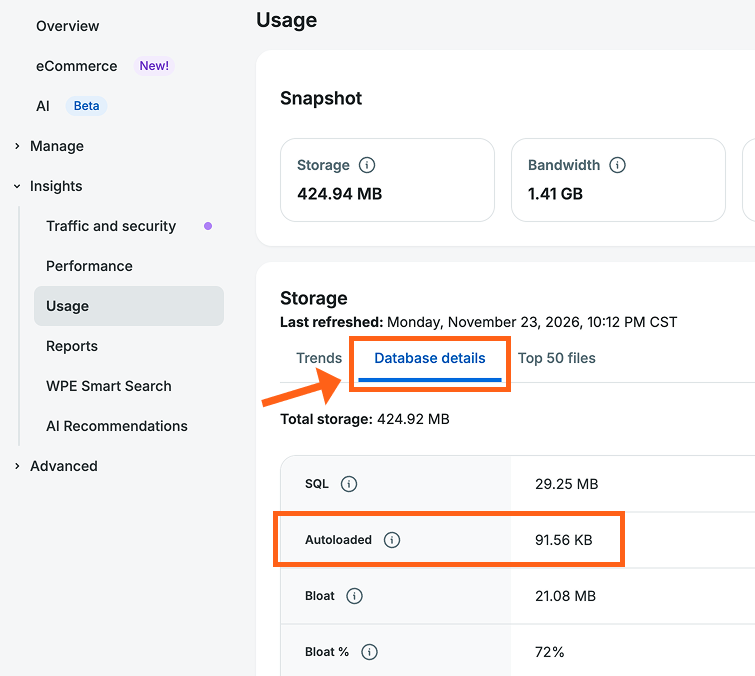
To check the size of your autoloaded data:
- Go to the environment overview page for your site.
- expand the Insights section in the environment’s side menu and select Usage.
- Scroll down to the Storage section and select the Database details tab.
- Review the value for the Autoloaded row in the table.
Learn how to manage your autoloaded data.
Find Slow Database Queries
Customers on WP Engine eCommerce plans, and sites with our eCommerce Performance Pack, can use Slow Query Monitor to quickly identify the slowest queries on their site.
Knowing which queries slow down your site the most can help your team to make technical improvements or identify unoptimized plugins or themes.
Learn more about Slow Query Monitor.
Index Your Database
Adding indexes to your database generally improves performance.
Learn more about how to add indexes to your database.
Using WooCommerce? Enable HPOS
In WooCommerce, High-Performance Order Storage (HPOS) uses custom tables to store order data more efficiently, reducing the load on the default WordPress tables. This makes data retrieval faster and improves overall store and database performance, especially for stores with a large number of orders.
Learn more about HPOS and how to enable it in WooCommerce’s documentation.
Large Databases
Some WordPress sites simply need large databases, but even well-managed databases can grow larger than needed over time. If your database is larger than 4 GB and you’re comfortable with advanced database management, consider our tips for optimizing your database.
Review Plugins and Themes
One of the key strengths of WordPress is its extensive marketplace of plugins and themes that deliver all the functionality you need on your site, and many people also develop their own in-house tools. Unfortunately, not all plugins and themes are optimized for performance.
If you have persistent performance issues, it may be worth reviewing your plugins to identify culprits and see if better-performing alternatives exist.
Dynamic Plugin Loading
WordPress sites often load plugins on every page, even when their functionality isn’t needed. This significantly slows page speed and can hurt conversion rates. Dynamic plugin loading lets you choose which plugins load assets on each page.
Dynamic Plugin Loading is available on eCommerce plans and sites with our eCommerce Performance Pack.
Learn more about Dynamic Plugin Loading
Identify Slow Plugins and Themes
Use this checklist to help identify plugins and themes that may be slowing down your site.
- Make sure WordPress and all plugins and themes are up to date. Plugin and theme developers are constantly improving their products, so a performance issue might already be fixed in the latest version.
- To find out if your theme is the issue, copy your site to a test environment and disable all plugins. Then run Google PageSpeed Insights or a similar tool on individual pages to see how your theme performs on its own. You can also compare your theme to a default WordPress theme to see the performance difference. Learn how to use environments and sandbox sites.
- Identify the plugins and themes that are slowing down your site:
- Are their queries optimized? If you have access to Slow Query Monitor, it’s a quick way to identify bottlenecks. If not, there are plugins that can help diagnose database issues.
- Do they use a lot of processing power? Use a plugin such as Code Profiler to see how much processing power they use and identify load latency.